You can run Windows programs on Linux using various utilities. You can do this by using Wine, Crossover, PlayOnLinux and Bottles. I saw a video online using Bottles and decided to give it a spin.
At the time of this writing I'm using Linux Mint 21.3 on my HP Notebook 15-bs023a.
The program I'm going to install, or try to is PhotoFiltre v7. My photo editing software of choice.
First we have to install Bottles. An environment that allows you to run Windows programs. Some of these sites get testy if you call them emulators. :-)
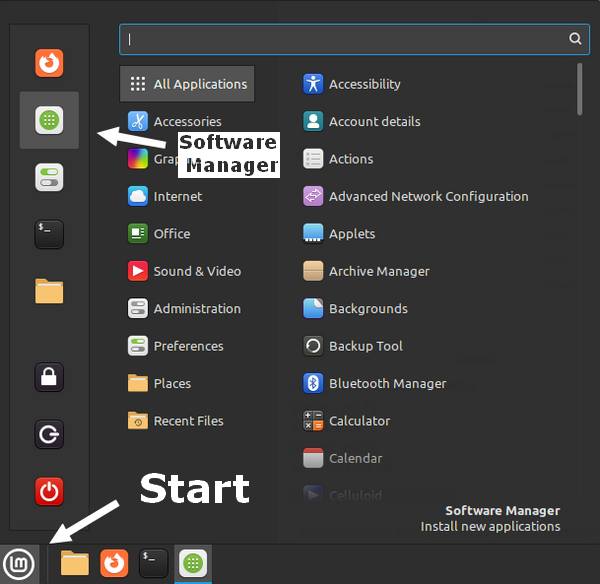
Click on the Start icon. Then click on the Software Manager icon. The white square with the green circle with the little white squares.
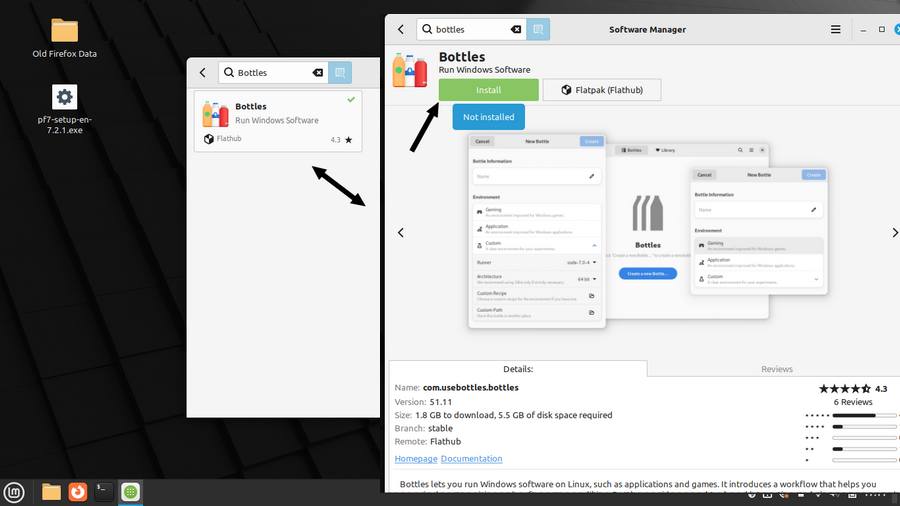
In the search bar at the top-left type in Bottles. When it shows up in search click on it. It takes you to a window with the option to install. Click on the Install icon.
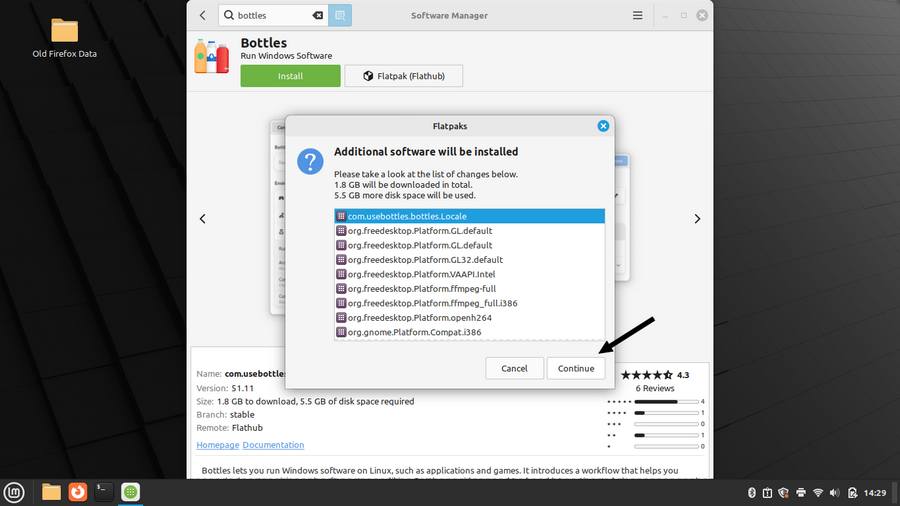
Then it tells you that additional software will be installed. Just click on Continue. Warning this install can be up to 5GB in size so you have to take hard drive space and download time into consideration.
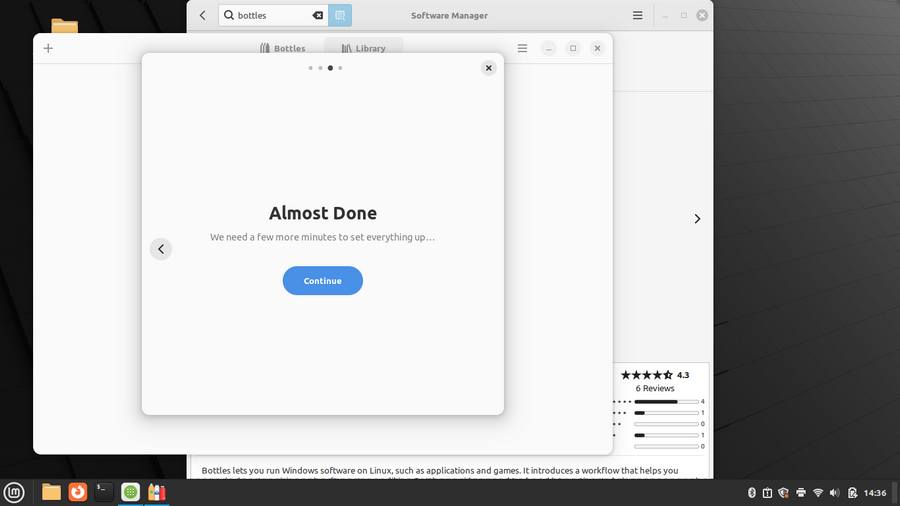
Click on the arrows on the right of the window that opens until you see “Almost Done” and “Continue”. You'll see another screen with “Almost Done” and a progress bar. Wait till it finishes.
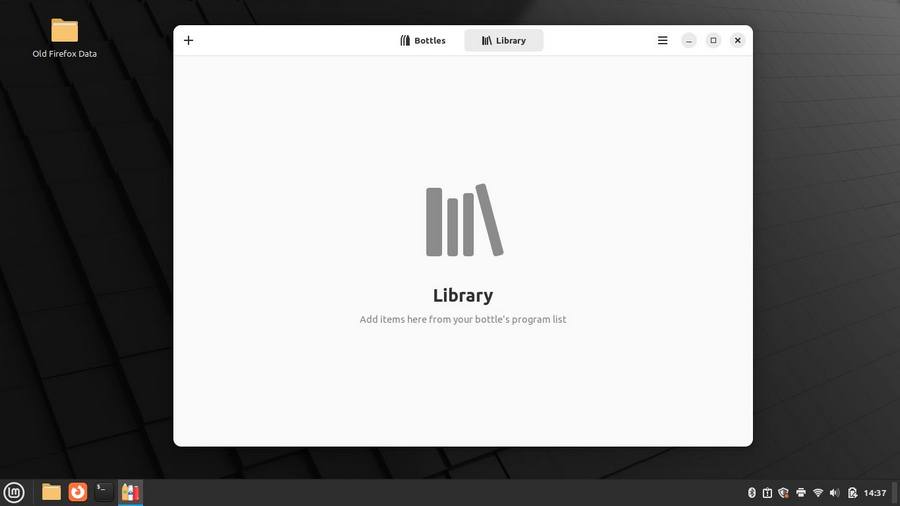
The end result. Click on the plus sign to create your first Bottle.
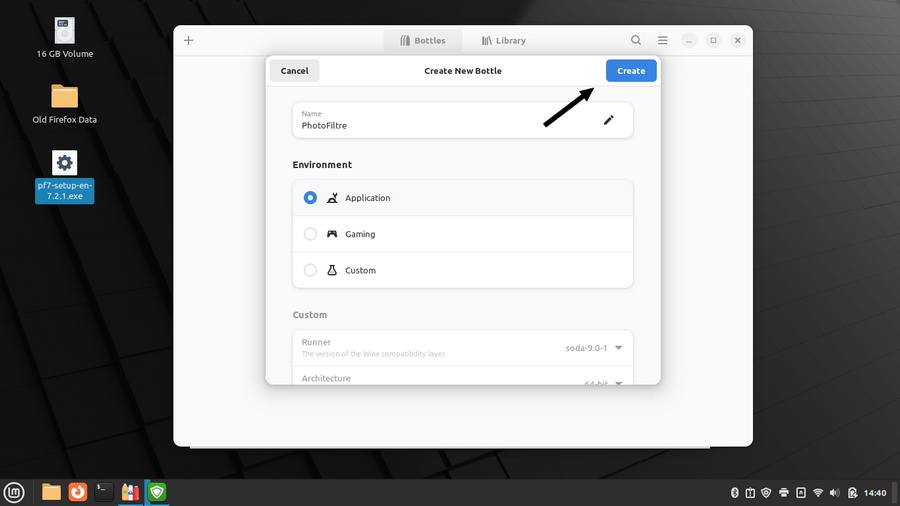
In the next window, type in a name, in my case PhotoFiltre. Click on “Application” (selected by default) and then click on “Create”, blue button top right-hand corner.
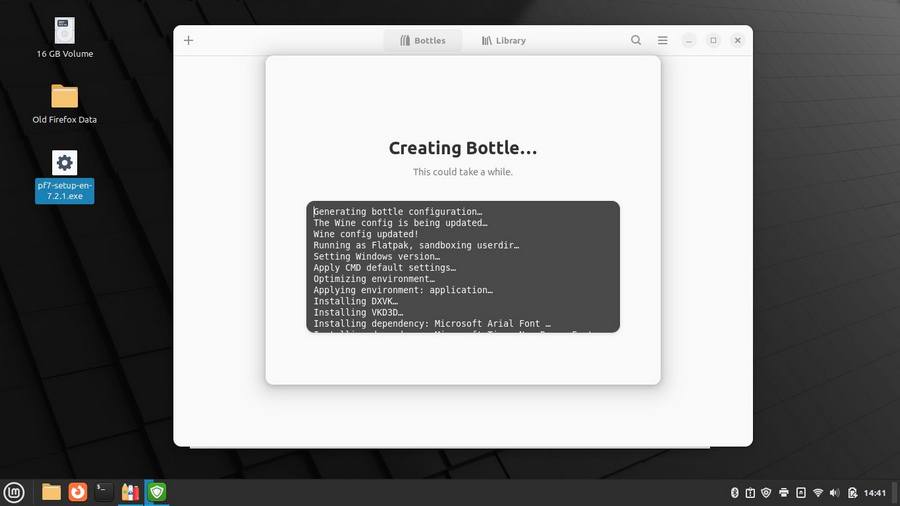
Now wait for the Bottle to be created.
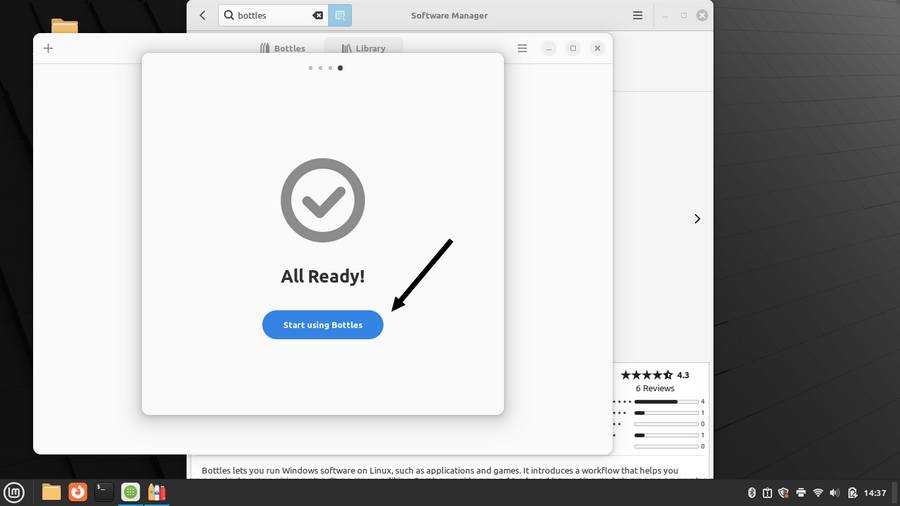
When finished you will get an “All Ready!” notice. Click on “Start using Bottle”.
Now back to the main screen click on “Application”.
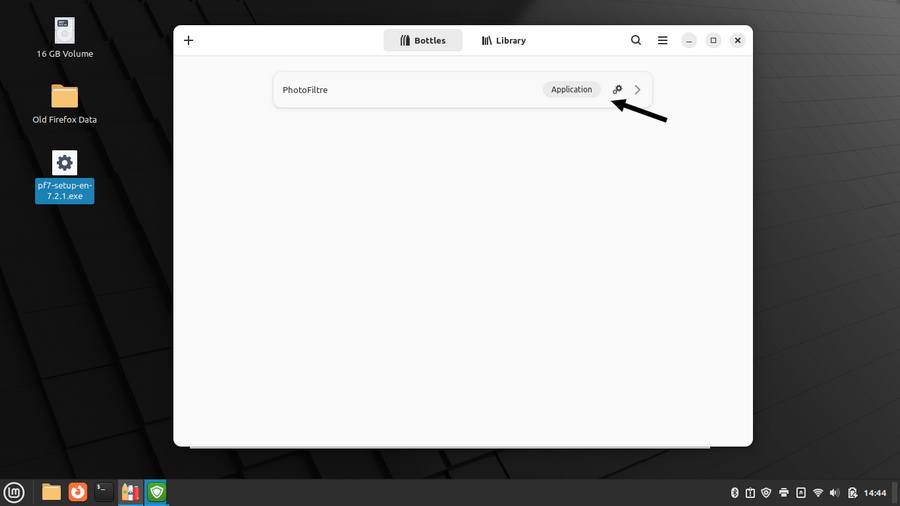
ON the next screen click on “Run Executable”. In the file explorer window that opens find the install for your program. I put it on my desktop and in the bottom right-hand corner I had to click on “Supported Executables” to “All Files” for my install to show up.
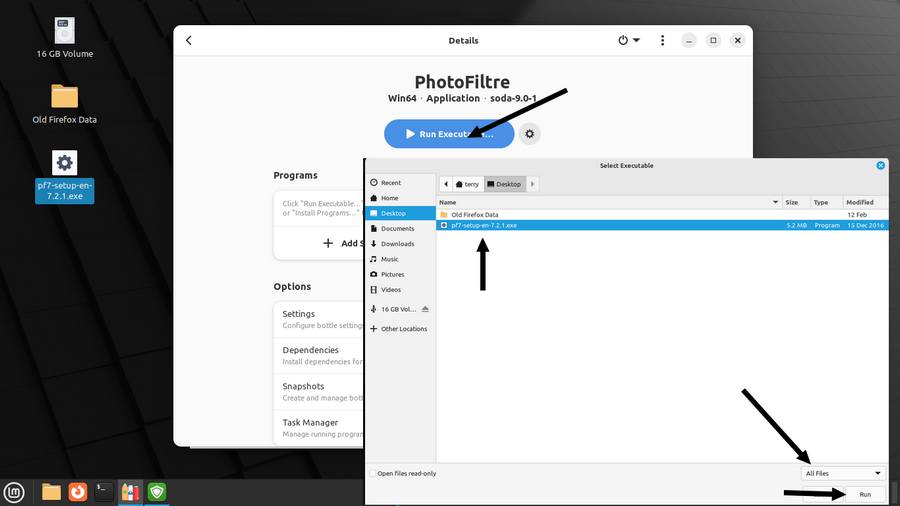
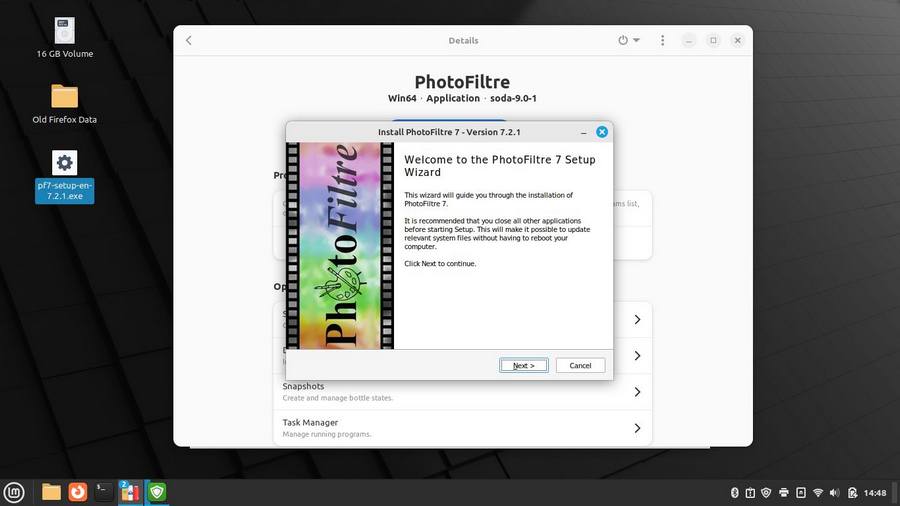
Click on your file and click on “Run”, lower right-hand corner. This will run the installer of the program.
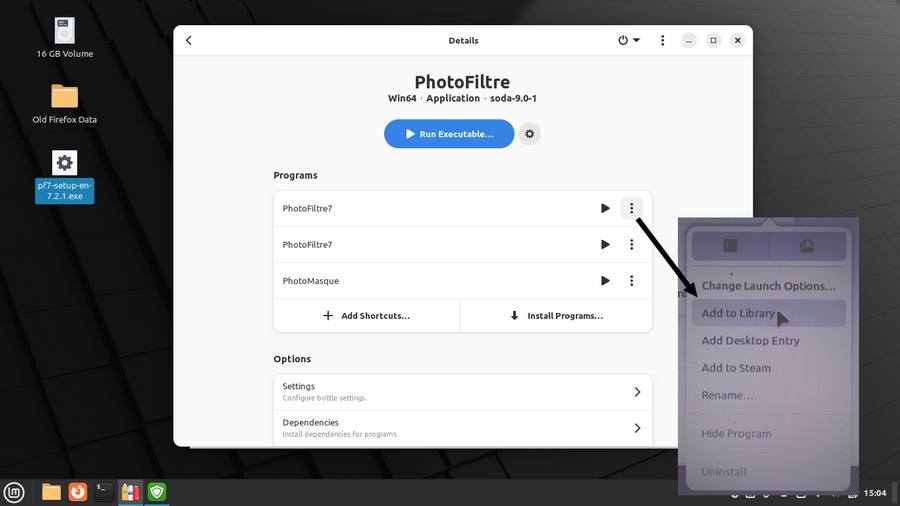
Again back to the main screen, click on “Application” again. This time you will see a list of installed programs. Click on the three dots menu alongside a program in in the menu that opens. Click on “Add to Library”.
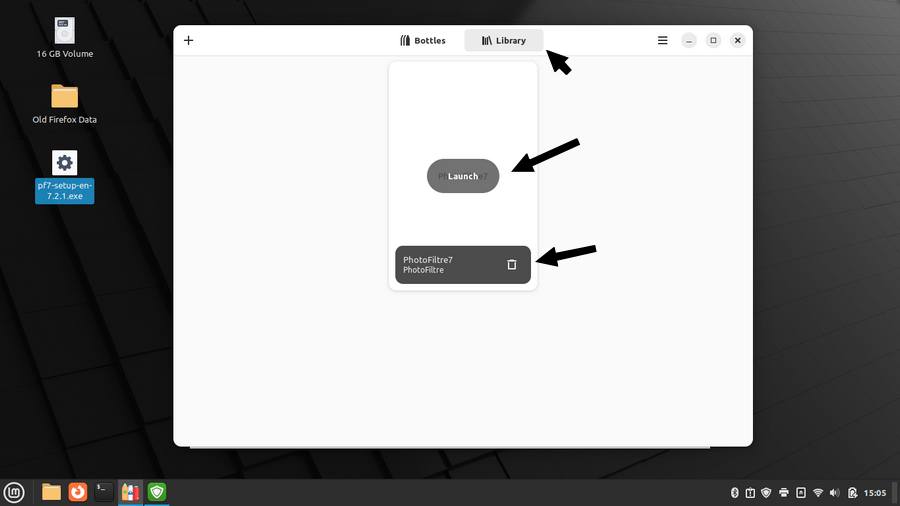
Now when you open the program click on “Library” at the top of the program window and you'll see in my case a white rectangular shape with the word “PhotoFiltre” on it (there might be a way to customize this) but for now hovering my mouse over it I can “Launch” PhotoFiltre. on or the bottom I also have the option to remove.
For now, that's the basic setup but many for options to explore.