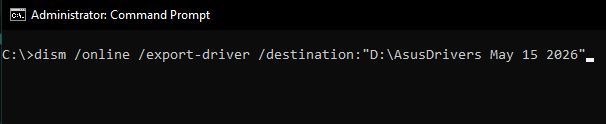
I was watching some YouTube videos, and sometimes you can actually learn something from them. In this case, how to back up your systems drivers using only the “Command Prompt” or “Windows PowerShell”.
First, select or create a folder for your drivers backup. I created “D:\CyberPC Drivers May 15 2026”. The name of my computer and the date, as of this writing.
Open the “Command prompt” or “PowerShell” as administrator and type the following and then hit Enter.
dism /online /export-driver /destination:”D:\CyberPC Drivers May 15 2026”
Your destination will be your own backup folder. Now you have a backup of all your drivers for your system. Save them somewhere off your system, just in case.
If you want to restore your drivers:
dism /online /Add-Driver /Driver:"D:\CyberPC Drivers May 15 2026" /Recurse
Remember to replace my backup folder name with your own.
I did the same thing for my Asus, but this doesn’t work on my Acer desktop with Windows 7.
Note: To open command or powershell as administrator, type command, cmd or powershell in search. If you don’t see the “Run as administrator” option automatically, right-click on Command Prompt or Windows Powershell in the search menu. Then select “Run as adminstrator.”
You will see the words “Administrator: Command Prompt” or “Administrator: Windows PowerShell” in the top left-hand corner of the appropriate window, when done right.
Don’t forget to back up your data as well. Online, External hard drives, flash drives, CDs, DVDs, any backup is better than none at all.
I was trying to print something on my Canon TR4720 printer but I kept receiving the error message 2110. Here’s how to fix it.
It kept repeating the 2110 error message, claiming that the paper in the tray didn’t match the paper selected. It was plain paper, I didn’t understand the error. Then I looked at the size.
I had selected “A4” and “Plain Paper”. I though I always used “A4” as the size but I guess I assumed wrong. Apparently I should have selected “Letter” and “Plain Paper”.
Switching the paper size to “Letter” from “A4” fixed the problem.
After a cold Christmas because of blizzards and power outages I woke up this morning to this error message blinking on my HP Printer (HP OfficeJet 3830).
Error Code 0xb98088fc
Luckily, the fix seemed simple. Turn it off and on again. I pressed the power button, it didn’t go off but it did restart. Problem solved? I been reading online that some had fixed the problem only have it come back a few days later. Only time will tell.
Here are a few more suggestions from the HP support site:
Quick fix for a TV that will not turn on.
I woke up early yesterday morning and my TV was on. I turned it off, and when I tried to turn it on later, it wouldn’t turn on. This is an “Element” brand TV. A 42” that I bought from my sister about 4 years ago. It was old when I bought it so I figured it’s time had just come.
I first thought it was a problem with my remote until I tried a second remote. I tried the buttons on the TV. Still nothing. The power indicator light was still on. It’s red and turns blue when the TV is on.
What to do? I unplugged the power cord from the outlet and waited for about a minute before plugging it in again. And that worked.
This morning, my TV was on again when I got up. I turned it off but this time when I turned it on again, it came on. So is my TV on its way out? Only time will tell.
My mother had a Samsung 32” TV (we still have it). It took an hour or two, constantly clicking the on/off before the TV would turn on. I am not joking. She got a new TV eventually and I still have that old one. After a few days of not being plugged in, the problem for the Samsung seems to have gone away. So unplug your TV for awhile and if all else fails.
I wrote before about this problem, My TV not turning on without me pulling the power plug first. For the last couple of mornings when I got up, my TV was ON. Turned on by itself. If I turned it off for any length of time, I had to pull the power cord for a few minutes before I could turn it on. So I went online searching for more information concerning my situation. Some suggestions included:
I don’t have any of these but I do have a device connected to my TV. My Acer Desktop. The one with Windows 7. Connected with a VGA cable. I still use it in my Network backup. I recently made some backups and just kept the computer running.
I had no issues with it before. So, time to experiment. I did the unthinkable. I turned off the computer. When I went to bed I turned of my TV. The next morning, I got up, and the TV was still OFF. Tried it two nights in a row now. Same result and no more problems turning on the TV.
You have the same setup for years and nothing changes. I’m still blaming gremlins.
I wrote previously concerning not being able to turn on my TV. I traced the problem to my Acer Desktop computer being on since I had been using my TV as a monitor. I was trying to figure what went wrong. My TV isn’t a smart TV, so it’s not updating. I’m very sure my Windows 7 desktop isn’t updating.
I was blaming gremlins at first, but then I remembered one change that I made to my Acer desktop, I installed an extension called “Caffeine”. davescomputertips.com/keep-your-system-awake-with-caffeine/
This extension allows to to disable/enable monitor and system power downs with the click of the mouse. A little bit of experimenting and it does seem like the extension interferes with the operation of my TV when active. I am now sure that this extension is responsible for my TV’s strange behaviour.
So an extension, not gremlins. My apologies to the gremlins, this time. :-)
One of the first problems I had with my TiVo cable service is that the batteries in my remote seemed to only last a week. I got in touch with Tech Support and they just sent me a new remote.
When you move or shake this remote in the dark, the buttons would light up. Good or bad, up for debate. I was convinced that this was one of the reasons why the batteries drained so quickly. I don’t really need or want that feature so I disabled it. Here’s how.
To turn it off.
Press and hold the “TiVo button” and the button with the “Thumbs down” at the same time. Watch the “activity light”, at the top of the remote. Just above the TiVo button. It flashes “red” three times. Then press the “Clear” button.
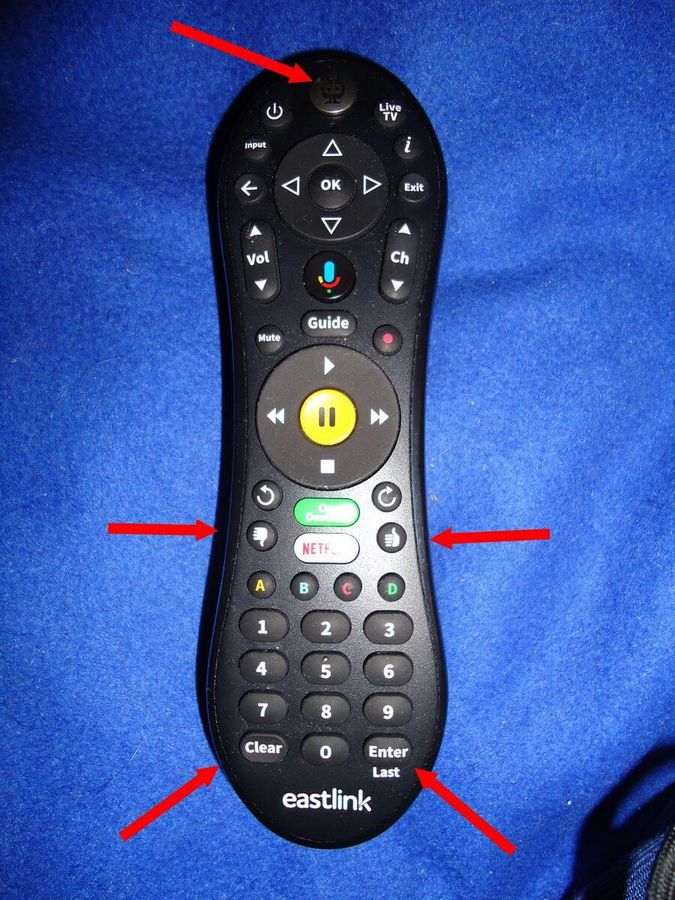
It was a bit tricky for me. I had to try it a few times to get it to work. But it works.
To turn it back on.
Press and hold the “TiVo button” and the button with the “Thumbs up” at the same time. Watch the “activity light”, at the top of the remote. Just above the TiVo button. It flashes “red” three times. Then press the “Enter” button.