Finding duplicate files and folders using CloneScan from www.tkosoft.com/downloads
I can’t remember how I came across this program but I downloaded it and gave it a spin. As of this writing it doesn’t come bundled with any other software and gets a pass at Virustotal.
I downloaded it, installed it, ran it on my CyberPC with Windows 10 and it didn’t work. I tried single folders and two folders to compare. And nothing.
So I tried it on my Acer with Windows 7. It Worked right out of the box. Same thing on my Asus with Windows 10. So on my CyberPC, I uninstalled it and tried running it in Administrative mode, still nothing. A little experimenting with the program on my other two computers, I found out the solution. But first ...
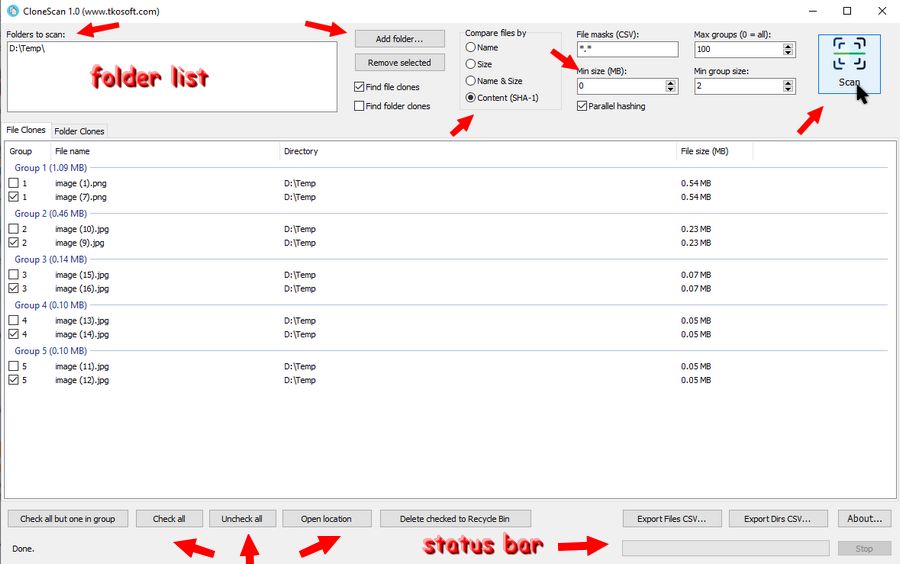
Open up the program and click the “Add folder” button to add the folder(s) that contain the files that you want scanned for possible duplicates.
You see the list of selected folders in the box “Folders to scan:”.
If you want to remove a folder from the list, click it and then click “Remove selected”.
You can scan for just files or folders. It’s recommended to keep the “Compare files by” option at “Content (SHA-1)”, for the best results.
I didn’t change any other settings except the “Min size (MB)”. By default it’s set to 1. That means it will ignore any files that are smaller than “1 MB”, and that was the problem on my CyberPC.
For some reason, even though most of my original test files where originally over 1 MB, it still would not work on my CyberPC until I switched that value to 0.
Now a simple test. I put 22 pictures in a folder and duplicated 4 of them and ran a scan. When you have your folders selected, click on the scan button in the right hand corner.
You should now be seeing a list of duplicates from your selected folder(s). Your options for dealing with the files are at the bottom of the program.
You may want to check out the files manually first to see if it is what you want to delete. Click a file listed and click the “Open location” button.
Unfortunately, it doesn’t seem to offer any right-click options.
In this simple test it made one mistake. It identified “image (1).png” and “image(7).png” as duplicates but they where not. It got the rest right. This is why you might want to check them before deleting.
Deleted files go to the Recycle Bin.
Despite the initial problem on my CyberPC, I will consider this program a success and will keep it on my system for future use. Which means, I might never touch it again. :-)