Windows 10 still has the built in backup utility from Windows 7. Here is how to use it. Not sure if its in Windows 11.
My Nephew gave me his old CyberPowerPC. Slightly better than my current ASUS desktop. So I'm setting it up as my main system. I'm all ready to make a system image backup. Normally I would use “Macrium Reflect” but they no longer have a free version.
Note: You can still download the last free version of Macrium Reflect from here: https://www.majorgeeks.com/files/details/macrium_reflect_free_edition.html. It should still work but it will not be updated anymore.
I tried “MiniTool Shadowmaker” but no amount of troubleshooting could make this thing work. So I checked to see if Windows had any backup software built in. It does. It has a file backup, which I don't think is a full image backup but it also has “Backup and Restore (Windows 7)”. I decided to give it a shot.
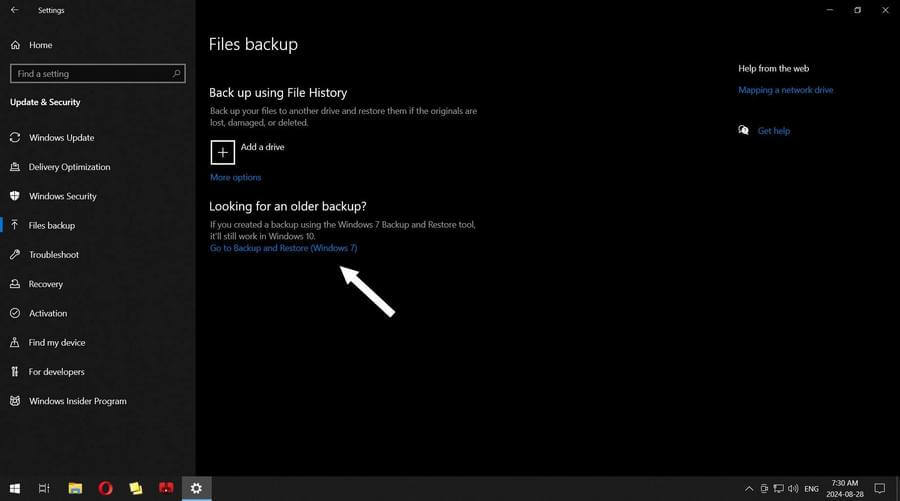
Go to Settings -> Update & Security -> File backup
or type backup in the search bar and then click on “Backup Settings”.
Click on the line that says “Go to Backup and Restore (Windows 7)".
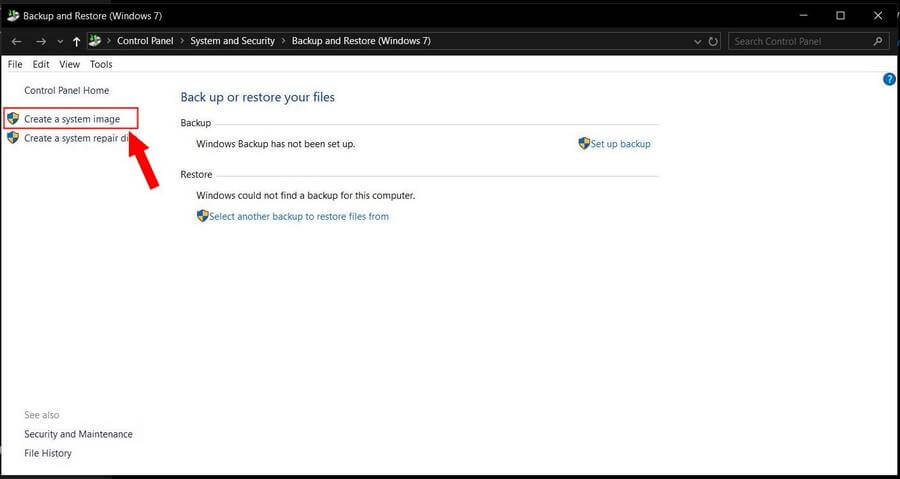
If You ever used Windows 7 backup in the past you'll be greeted with a familiar window. Click on “Create a system image” in the top left-hand menu.
Next it asks you "Where you want to save the backup?" In my case it had already detected my external hard drive, (F:).
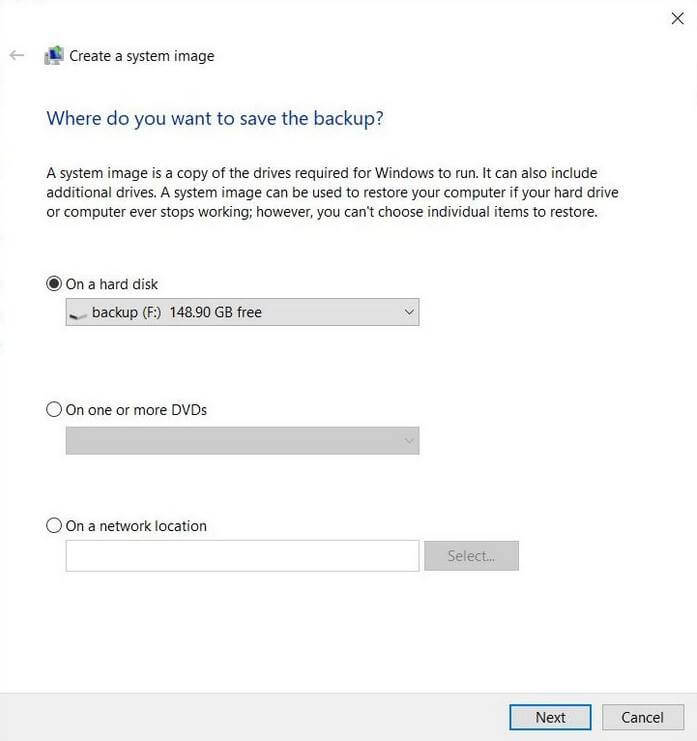
Click on “Next”
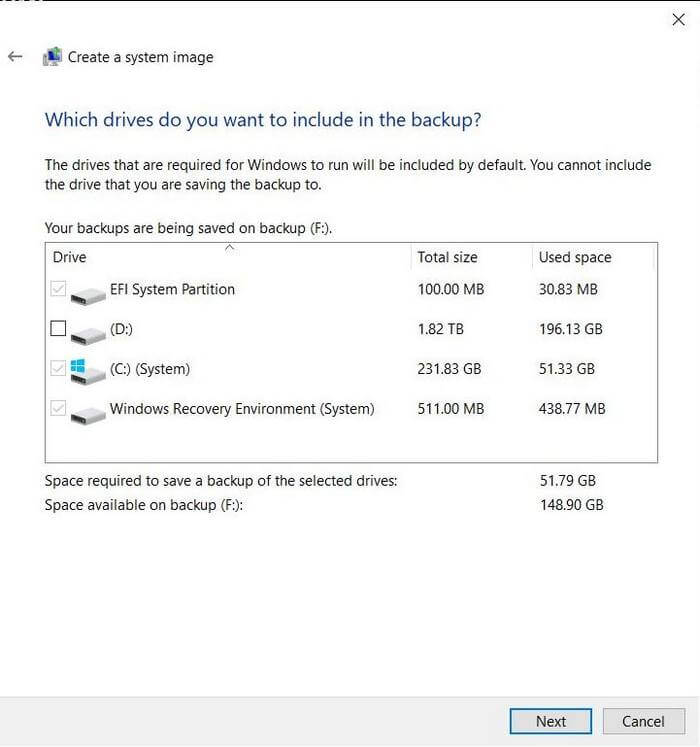
Then it will show you the drives to be backup. The main C: drive and its other partitions where already checked. Check any other drives you want to back up or click on “Next” to continue.
Then confirm your settings and click on “Start backup”, lower right-hand corner.
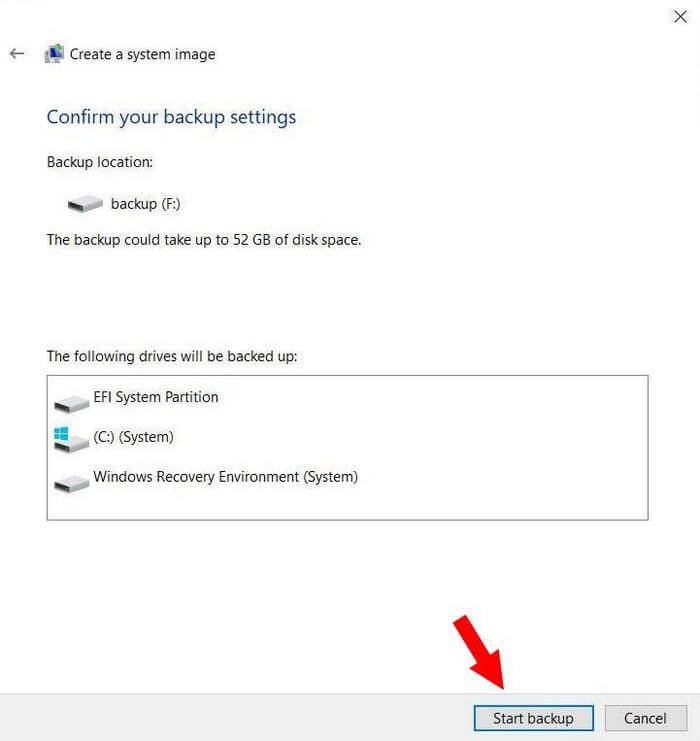
Now just wait as it creates the image.
Note: There is one Major downside to this. You need to make some recovery medium to boot of to restore your system but this backup option only allows you to make a recovery CD/DVD. You'll need a CD/DVD burner with a blank disc.
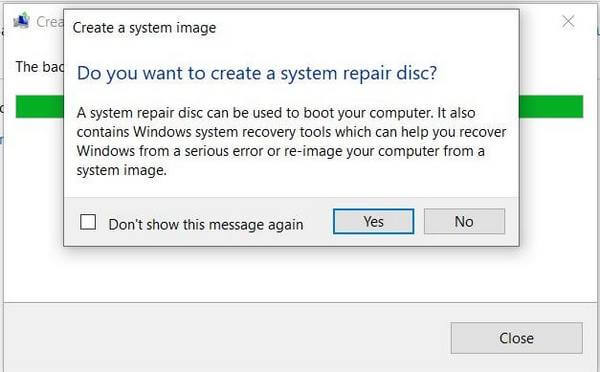
When finished it will prompt you to make a “System Repair Disc”. I'm in luck with the burner thing so I clicked “Yes”.
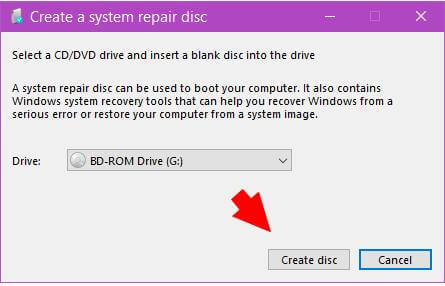
I put in a blank “CD” and then clicked on “Create disc”.
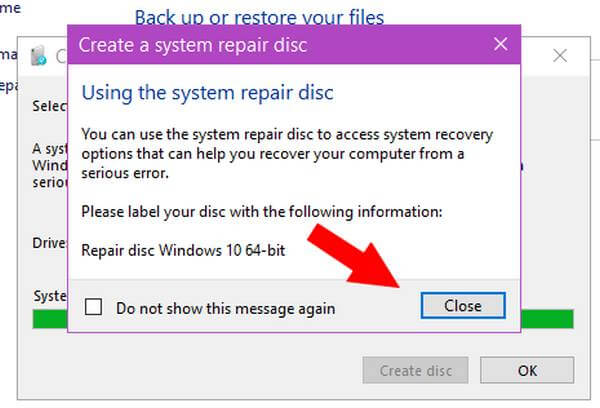
Once its finished it will prompt you to label the disc as “Windows 10 64-bit”. Click on “Close” and we are done.
Store all backups in a safe place. It's recommended to have more than one backup and to store one backup off site. Away from your home with family or friends. Bank Security Boxes. Maybe online storage?