My movie collection file size ballooned from around 300GB to 1.2TB. I couldn’t understand why since I only recorded a couple more movies from my cable box. I scanned through my videos only to find that the last movies copied over where like 140Gb to 170GB in size. I must have picked the wrong codecs to save in OBS.
The hardest part is trying to find the perfect balance between video quality and video size. A little research online and I came across some preset settings that do a pretty good job. I saved the presets for future use.
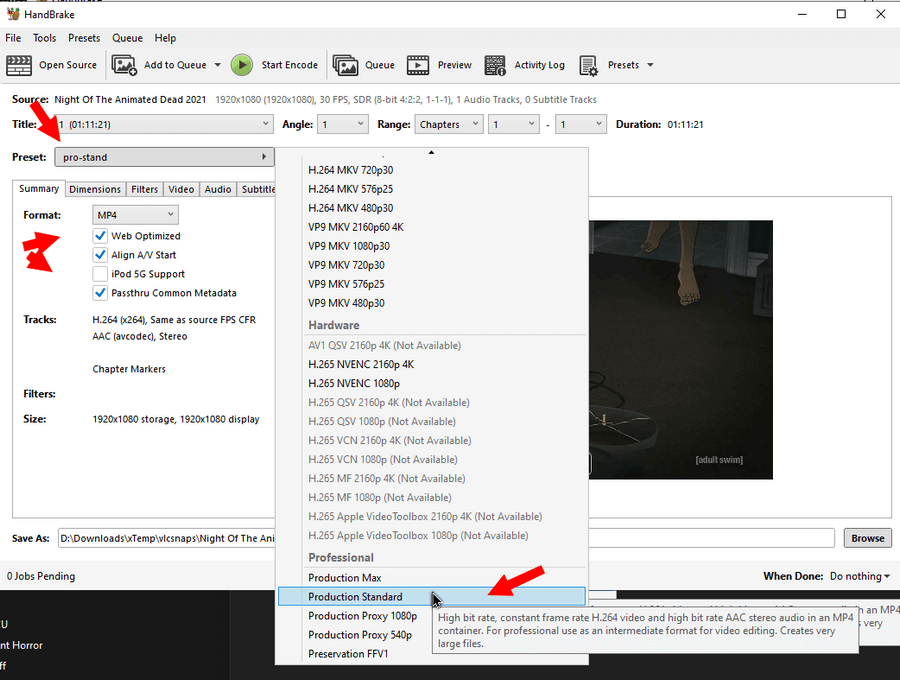
Open Handbrake and click on the “Preset” option and scroll to the bottom of the list and select “Production Standard”.
Make sure you are on the summary tab. For “Format” I set it to “MP4”.
I also checked “Web Optimized”, “Align A/V Start”, and “Passthru Common Metadata”.
Then I clicked on the “Video” tab. I set the “Video Encoder” to “H.264 (x264)”.
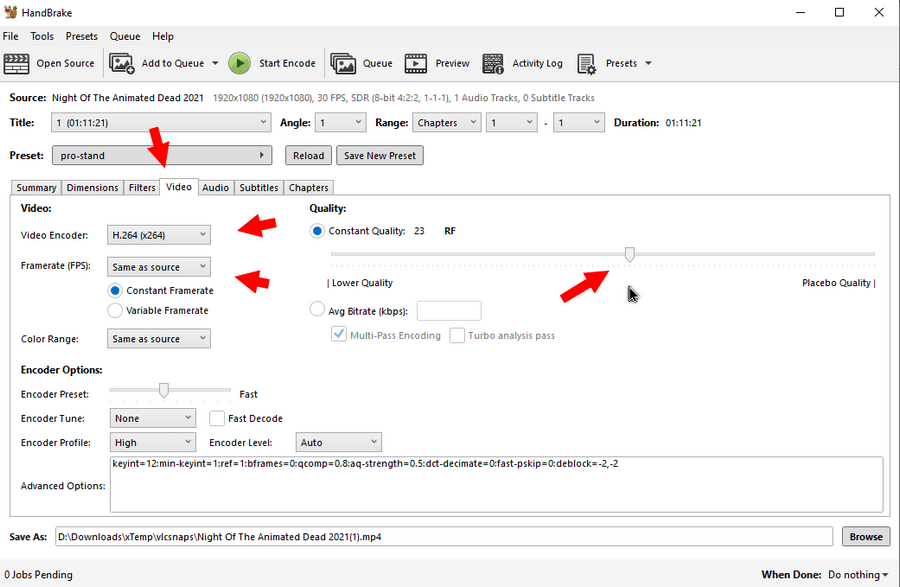
For the “Framerate (FPS)", I set it to “Same as source” and checked the “Constant Framerate” option just under it. The “Constant Quality” slider I set to 23. Lower values equal higher quality but larger files.
I didn’t touch any other settings.
So now I want to save this preset. Click on the “Save New Preset” and give it a name. I saved mine as “pro-stand”.
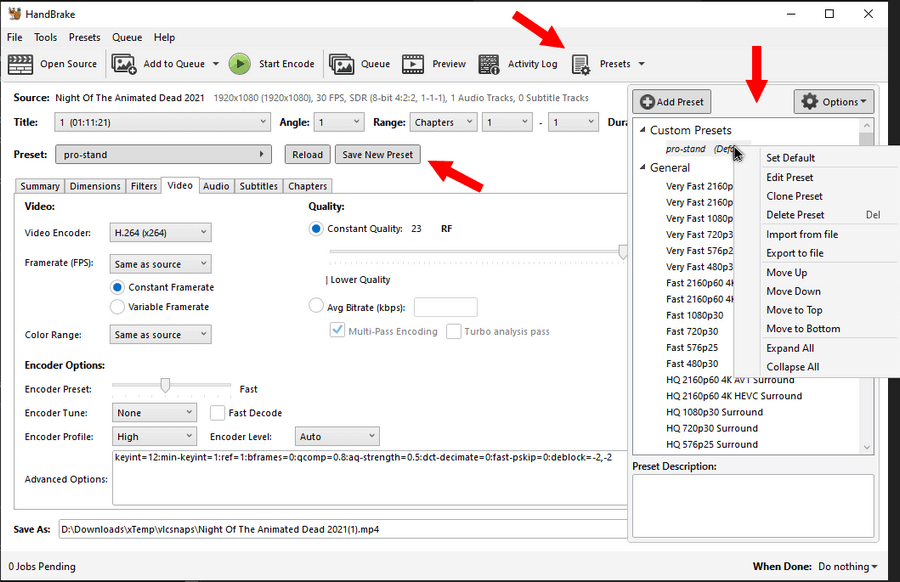
You can manage these presets by clicking on “Presets” icon in the top menu. Then right click on a preset to see your edit options, such as, “Set Default”, “Edit”, “Delete” and so on.
The “Options” icon gives you basically the same right-click menu items.
So how did it work. I was able to knock a few 100GB+ videos down to an average of 4GB each and it only took around an average of 25 minutes each.
These are just suggestions, but you are free to experiment with your own settings. Create your own presets. Whatever works for you.