I tried to record a video from my TV box to my computer using PotPlayer.
Download PotPlayer here. potplayer.tv
The video recorded except for one issue. No sound.
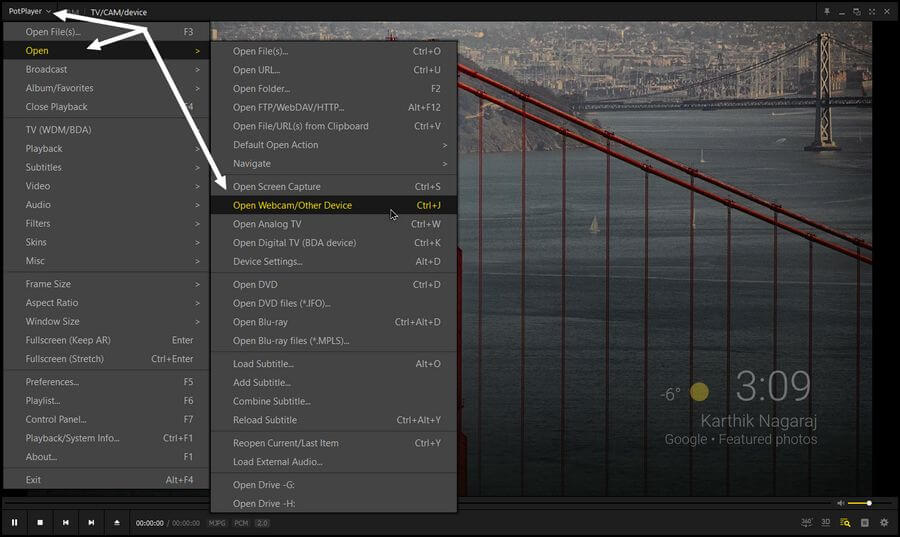
I opened up PotPlayer and then in the top left-hand corner where you see the word PotPlayer, I clicked it. Then in the menu click On “Open” and then “Open Webcam/Other device”.
I didn’t have any sound coming through. At first that didn’t bother me because when I use OBS I don’t hear any sound either but it stills records on the videos.
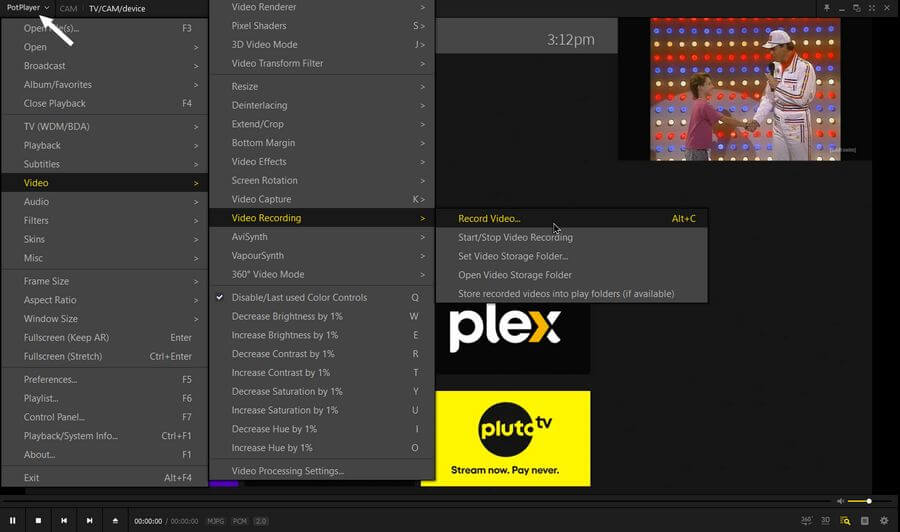
When the stream starts playing, I clicked the top menu again and then clicked On “Video”, then “Video Recording”, then “Record Video...” or keyboard “Alt + C”.
Then in the box that opens select the “Storage”, where you want to save the file. Click the box with three dots to navigate to your save video folder.
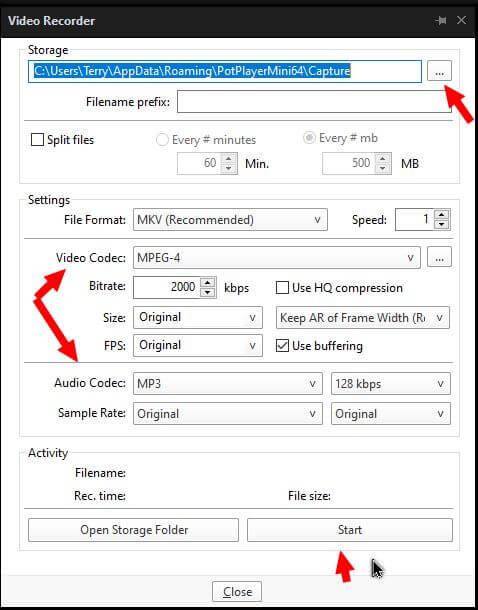
Here you can also set your codecs, both audio and video. You can split the video up into smaller chunks if you want, otherwise just click on “Start”.
The Start button turns into a Stop button. You can keep this box open until the recording is done otherwise close it and come back to it later. The size of the recording will show just above the Start/Stop box as its recording.
I did this only to have a video with no sound.
I tried a few things I found online with no luck but did finally find a solution.
Go into preferences “F5”, or menu then “Preferences”.
Click the little plus sign in front of “Device” to expand the Device options. I clicked on “Webcam”
The default was listed as “WASAPI - Default Device”. I switched it to “ – Digital Audio Interface (USB2 Digital Audio)”. Click “Apply” and/or “OK”. And it works.
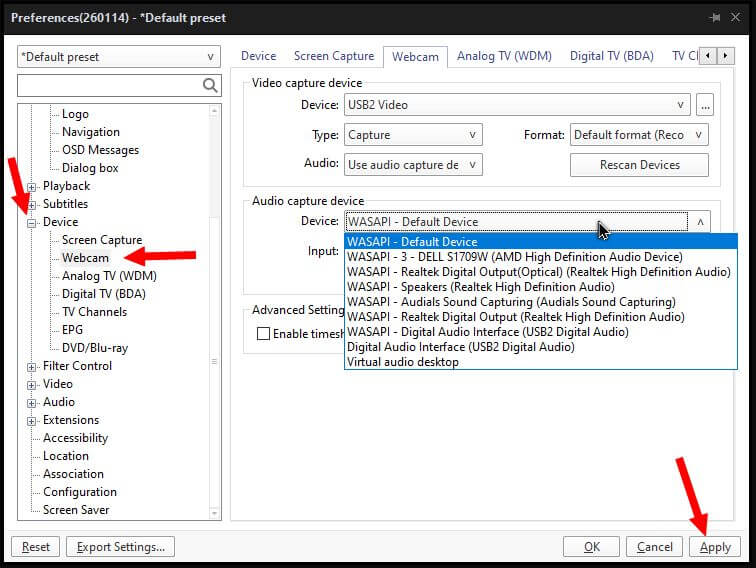
The “Digital Audio Interface (USB2 Digital Audio)” option also works for me.