Using OBS To Record Movies From Android TV Box.
I wrote before on this using an older "EasyCAP" device to record movies from my Android TV cable box to my computer.
http://hitanykey.x10host.com/jan_29_2025.html (Record From Cable To Computer Using OBS Studio)
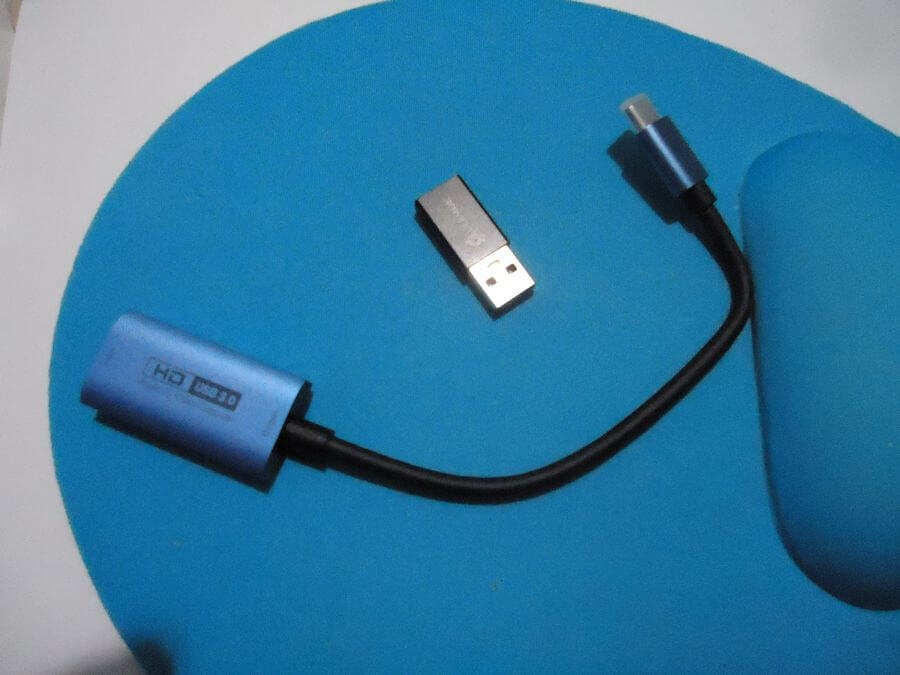
I then bought a HD Video Capture USB device called a “Guermok Video Capture Card” from Amazon. They still call it a card. Bought it, received it, and hooked it up and this is how it went from there.
I had to use the small adapter that came with it because I didn’t have the proper USB plugin on my computer. Then I plugged my HDMI cable into the device. Note: I did discover later on I did have a USB C, the native plugin on the adapter but couldn’t see it for the mess of wires behind my computer.
I couldn’t see the forest for the trees. :-)
Then I plugged the USB connector into a USB port on my computer. I went to the device manager and the driver installed successfully as a “Camera – USB3 Video”. So far so good.
Then I plugged the other end of the HDMI cable to my Android cable box.
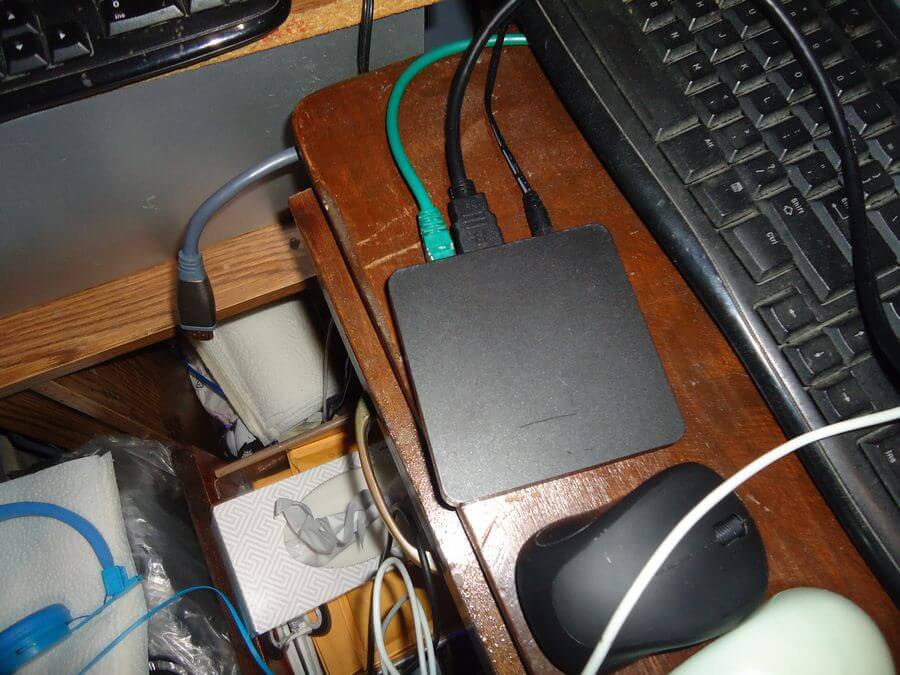
I opened "OBS Studio - https://obsproject.com/download" and my system froze up. I had to restart to clear out my system. A little troubleshooting and it turns out to be that little adapter, which I didn't even need. I removed and plugged the capture device directly into my computer. Finally got everything working.
The final video was of good quality and I only had one issue with it. It was recorded from TV which means lots of advertising. So I went looking for a way to cut out the ads.
A reminder to unmute the “Mic/Aux” in OBS. I forgot in an earlier test run and was wondering why my movie had no sound.
The movie this time is “Avengers: Age Of Ultron (2015)”, in case you are wondering.
I settled on using a program that I’ve used before called “Avidemux” to edit out the advertising.
Download Avidemux from https://avidemux.sourceforge.net/
Open the program, and click on “Open File”. You can also use the file menu. Open your movie.
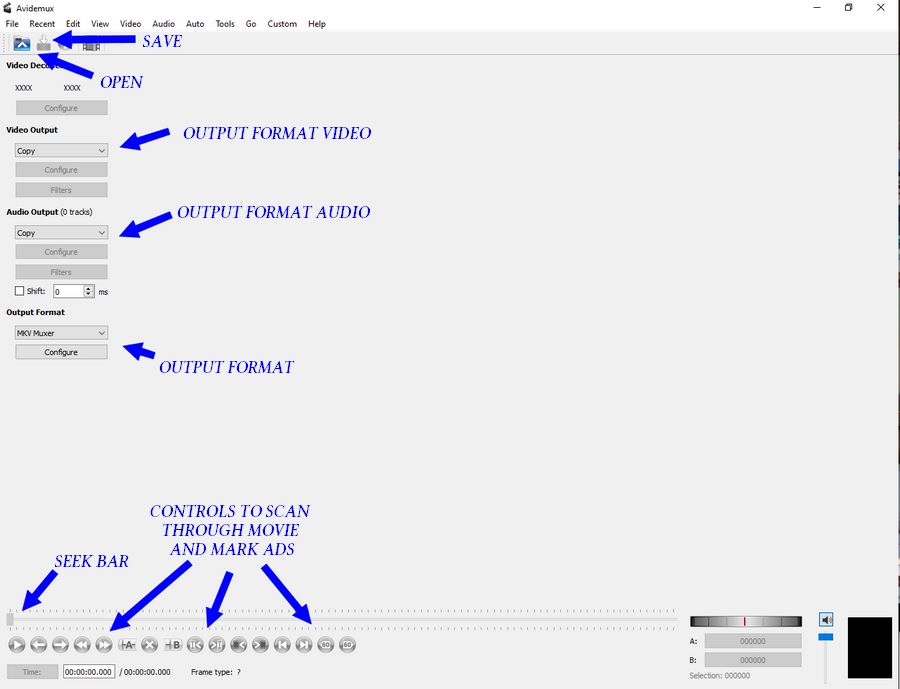
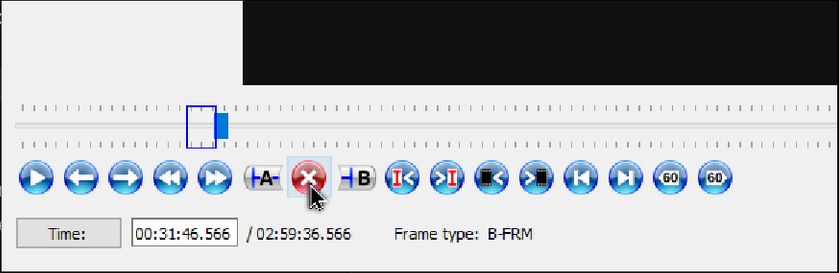
I use the video controls towards the bottom of the screen and the seek bar to mark out the advertising that I want to remove.
You'll notice a “X” button between the “A” and “B” button. When I put my mouse cursor over it a pop up message said “Delete Selection”.
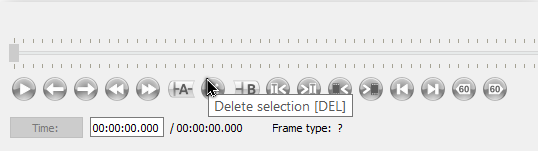
I use the seek bar (click, hold down and drag) and go to place in the video where the first block of advertising starts. Between where the movie fades out and the ads begin. I set my first point by clicking on the “A” button. Then I go to the end of the advertising segment and that is where I click on the “B” button to set my second point.
Now that I have the commercials caged in I click on the “X” between the “A” and “B” buttons. That little segment gets removed and those ads are history.
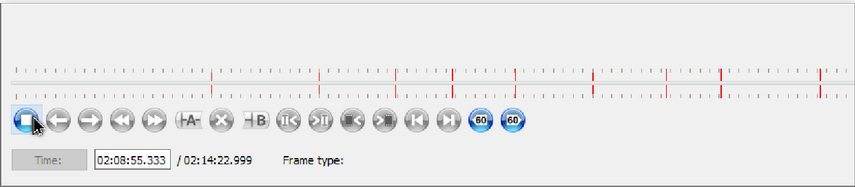
What is left behind in a red line indicating the cut in the video. Repeat throughout the video.
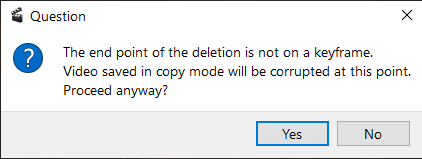
At this point I did get a warning pop up concerning “The end point of the deletion is not a keyframe” and a warning that trying to save in Copy mode might corrupt the file. I clicked on "Yes" but then I changed the “Output” format. I don’t know codecs but I switched the “Video Output” to “MPEG 4 AVC (x264)" and the “Audio Output” to “AAC (FDK)”. I left the “Output Format” on “MKV”.
Once all advertising is removed, save the movie by clicking on the “Save video” icon or again you can use the File menu.
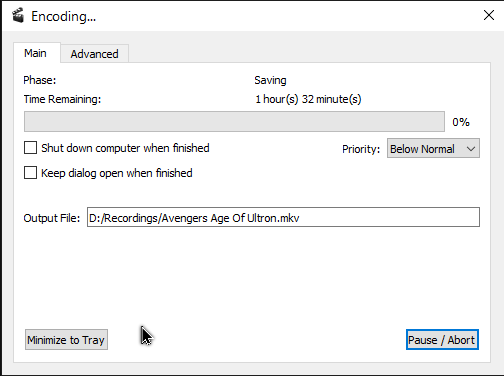
Wait ... and now you are done. Your video should be in your "Output File Folder".
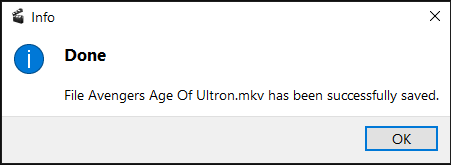
The time may vary depending on the movie length, output format selected, and the power of your computer. The end result; a watered down, edited for TV version of the movie with no commercials.