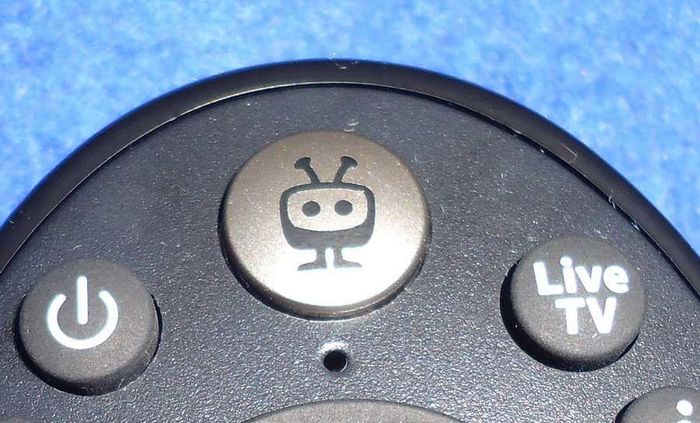
I finally bit the bullet and upgraded my cable to the TiVo system. Mainly because its $60 cheaper than what I was paying. The TiVo service uses Android TV boxes. Probably why its cheaper. Occasional glitches are to be expected in any system.
A woman called me because she had dropped here remote control for her cable/TV. It was a "TiVo" remote and some of the buttons stopped working. She couldn't turn her TV on or off or even adjust the volume, which was stuck on Mute.
If she could have used the buttons on the TV to adjust the vilume and turn it on or off that would have been enough. But there was a problem. This was an "Insignia" brand TV and I swear there are no control buttons on the TV whatsoever. If they are there they are very well hidden. All I could find was an “Input” button to change the device input options.
She had some older remotes to try, that is, if I could get them programmed in for her TV and cable box. If all else fails she would have to order a new remote form the cable company but still needed some control over the TV volume and power until a replacement was received.
I took the batteries out of the remote and put them back in. I also tried new batteries but no luck. I was able to get one of her older remotes programmed for the TV operations but not the cable box. This meant using two remotes until a replacement could be received.
They get cable from Eastlink. I went on their site for the instructions to program the older remotes and I also came across the instructions for the TiVo. So I asked myself, would reprogramming the remote clear up these problems? There was one way to find out.
So on the TiVo remote I clicked on the “TiVo” button. Shaped like their logo. Then “Menu -> Settings -> Remote CableCard & Devices -> Remote Control Setup -> Remote Control Pairing -> Set TV Power, Volume and Mute.
Select your TV brand, Insignia in this case. Press OK. You’ll go to a screen with a list of codes to pair up your remote. They are highlighted in blue.
Hold down the “TV Pwr & TiVo” buttons at the same time until the light at the top of the remote remains lit and enter one of the 4-digit remote codes.
Press TV Pwr, if the TV doesn't turn off return to the previous step and try another 4-digit code. Repeat until you get a working code. I think there where at least 10 or more codes there and luckily the first one worked.
So, take the batteries out, put back in, replace the batteries, reprogram the remote or replace the remote. You could also try some Universal remote and hope you can control all of the features that you want or need.
The moral of the story, don’t buy TV’s without enough proper control buttons and don’t drop your remote. :-)
Watching movies copied to a flash drive on my TiVo cable box.
This project originally started out differently. I was trying to hook up my Android cable box to my computer and see if I could access any of the files on it. Especially the recordings. The first problem I had was trying to get a USB wire with the same type of plugin on both ends. I knew I had one somewhere. It took me hours to find it, but here it is.
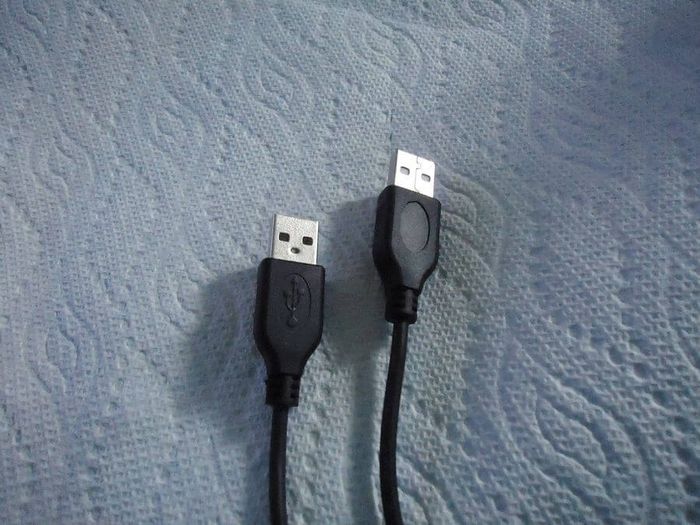
But all the effort was in vain because it didn’t work. My computer didn’t even try to install any device. Tried different ports and a different computer but complete silence. My first thoughts, are the USB ports on the TiVo box active? Nothing was showing on the cable box that indicated it was connecting to another device.
I quickly gave up on that scheme and went to Plan B. I plugged in a USB Flash drive to see if the drive was active or not. It immediately displayed my flash drive when plugged in.
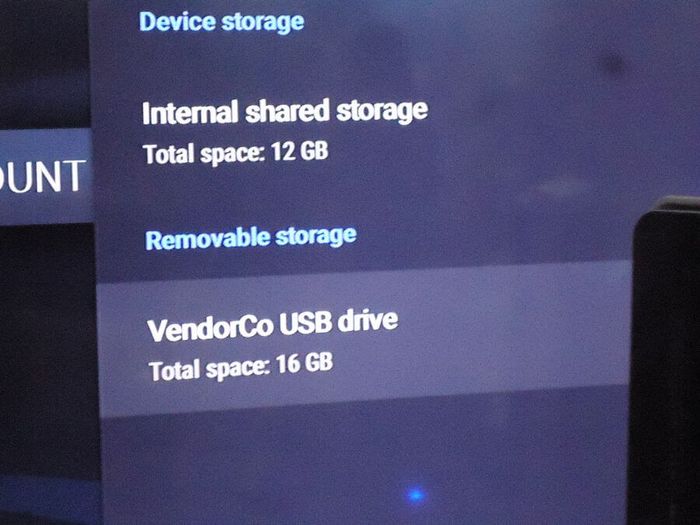
On my cable box I clicked on the TiVo button then went to MENU -> SETTINGS -> DEVICE SETTINGS -> DEVICE PREFERENCES -> STORAGE.
Here it is showing as “VendorCo USB drive – 16 GB”.
I took out the drive again. Copied a movie to it and plugged it back into the cable box.
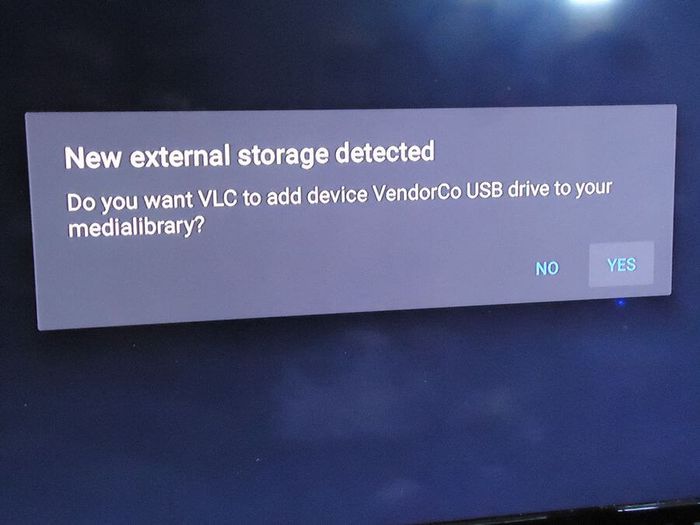
Then I went back to the “GAMES & APPS” section. Opened VLC and the first message I received was this popup asking me to allow VLC to access this device. I selected “YES”.
Now in VLC, go to “Browsing”. My flash drive was already visible so I clicked on “VendorCor USB drive”.
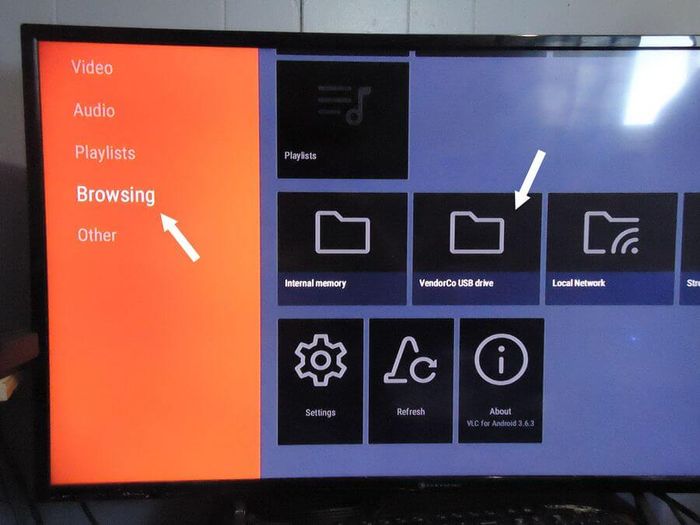
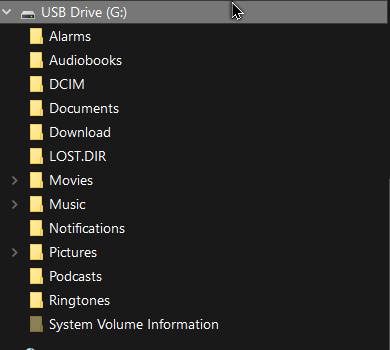
I then noticed a bunch of folders listed that VLC inserted on the drive (or the Android system did it) because I formatted the drive previously and it was blank except for the movie.
I scrolled down through the listed items and found my movie, in this case, “The Omen (1976)”. Clicked on “OK” on the remote and the movie started playing.
Another way to move media around in a world that doesn’t want you to move media around. :-)
I was watching a YouTube video and all of a sudden it started to fast forward. Then pause. This repeated with every video I tried. I suspected my remote control at first. So I switched remotes but the same problem kept happening.
I exited out of YouTube and switched to Netflix with the same issue. Then I went to the TV Guide. It started moving forward through the guide on its own, even with the batteries removed from the remote.
I was going to get in touch with Eastlink tech support but decided to try a few things myself first.
First thing to try, restart the Android box. There is no power switch on these things for whatever reason. I have to go into the settings.
MENU -> SETTINGS -> Device Settings -> Device Preferences -> Restart
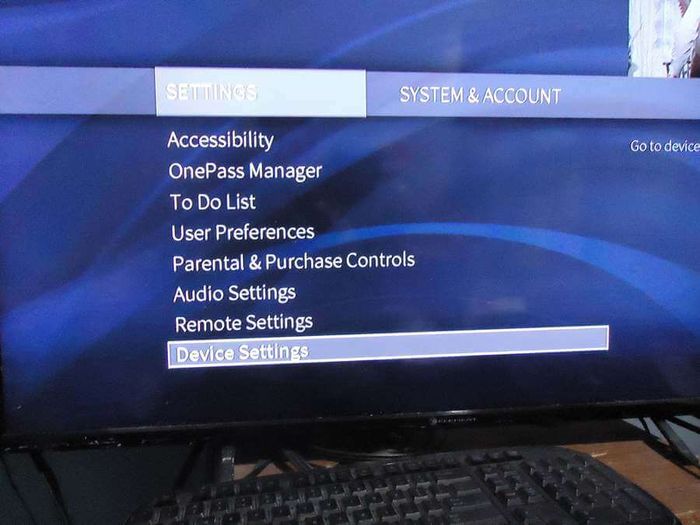
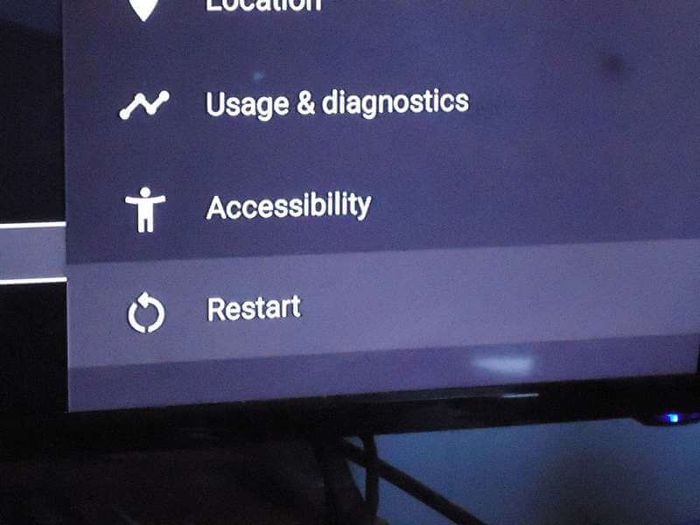
It restarted but it didn’t clear up the problem.
The second thing I tried, unplug the power cord. I kept it unplugged for about a minute.
This worked.
You are going through your channel TV guide and wondering exactly what channels you have. Three ways come to mind.
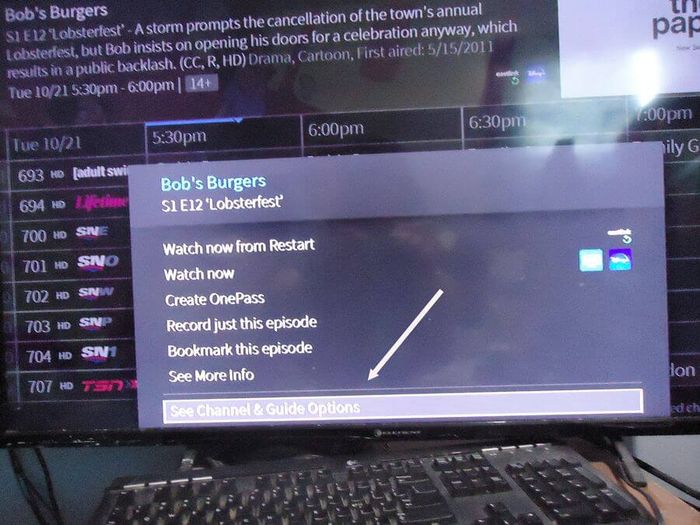
Open up the guide by pressing the “Guide” button on the remote. Then hold down on the “OK” button until the following menu pops up. Use the arrow keys (menu navigation, around the “OK”) and highlight “Set Channel & Guide Options”. Press OK on the remote.
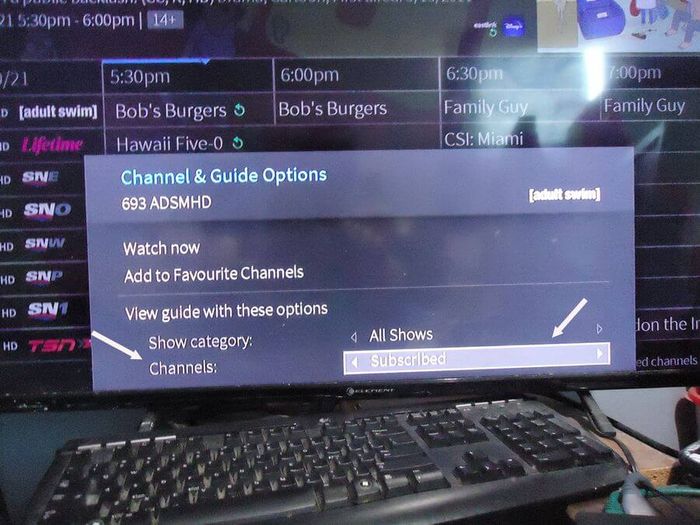
On the next screen scroll down to the Channels option, by default set to “All”. Set it to “Subscribed”. You could also here add your channel to the favourites list by selecting “Add to Favourite Channels” and then set the Channels to show only “Favourites”.
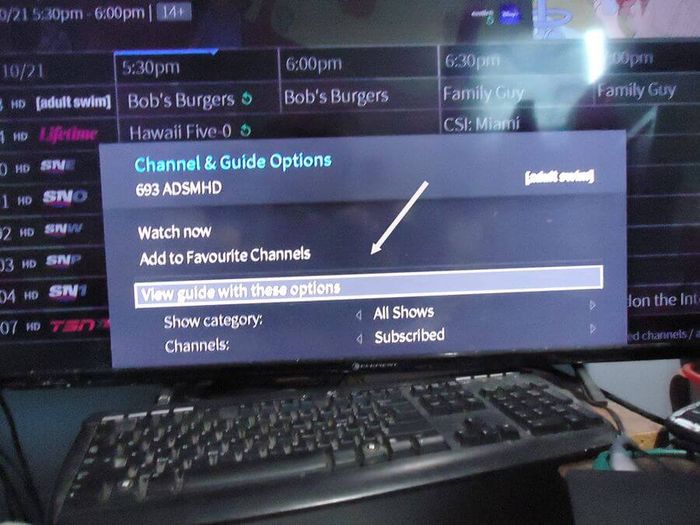
Now scroll up to the line “View guide with these options”. Press OK. That saves your choices. Now on the guide you will only see the channels you subscribed to or just your favourites depending on your personalized settings.
I was playing a YouTube video and it got stuck playing in a loop and I couldn’t stop it from playing. I could pause it but I couldn’t exit the video. If I exited the YouTube app and went back in the video would still be playing.
I went to the Weather Network that is both an app and a channel. It would load the picture except for the sound. I tried another channel that was not an app and I could now hear the sound from the Weather Network in the background. I went back to the Weather Network app and waited to see if it would load up properly. It did. That solved the crossover sound issue.
Back to YouTube, that (insert your favourite swear words here) was still playing. Android apps, wither they are on a TV box, phone or tablet, when you switch away from them they do not close automatically. They keep running in the background.
I knew I had to “Force close” this app. The question was how? I little snooping around the menus and I found what I was looking for.
I clicked on the “TiVo” button on the remote. The top button with the logo.
Then I scrolled left from “WATCH TV” to “MENU” and clicked “OK” on the remote.
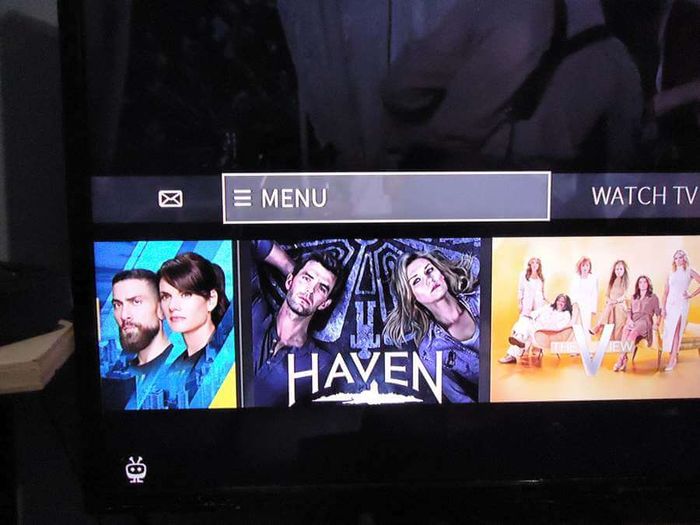
Then I selected “SETTINGS” and then “Device Settings”.
This opened a familiar menu on the right-hand side of the screen. I selected “Apps”. Then OK.
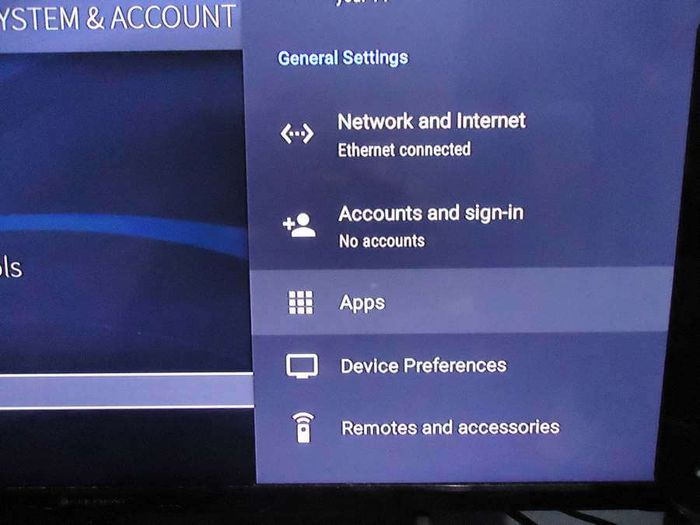
Then “YouTube”.
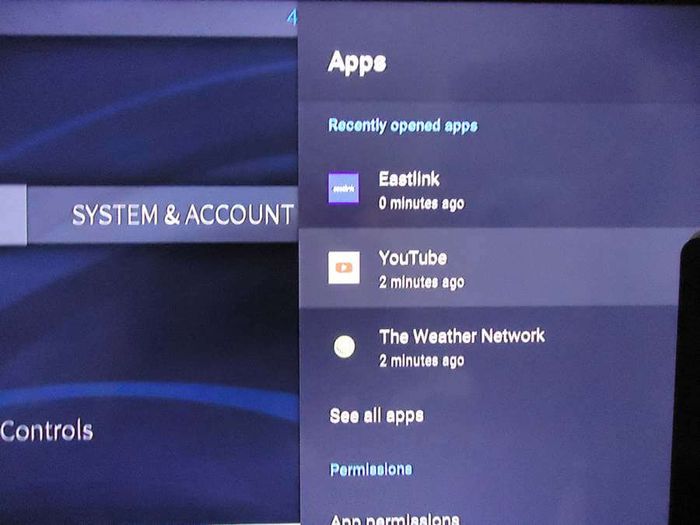
Then “Force stop”.
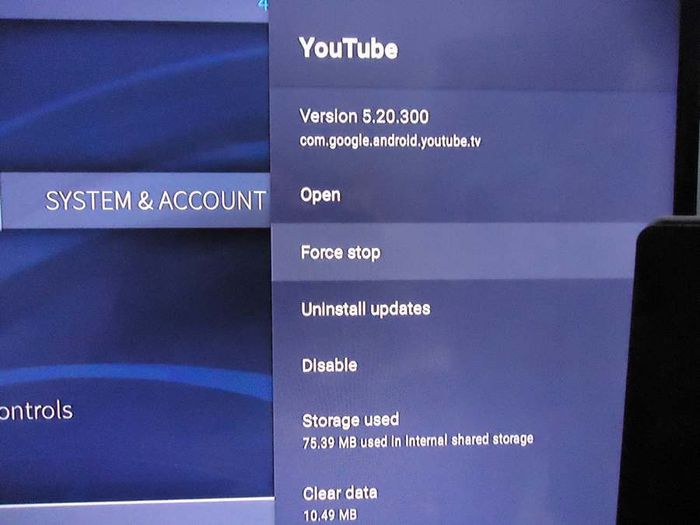
Then I got a warning concerning Force stop, I selected “OK”.
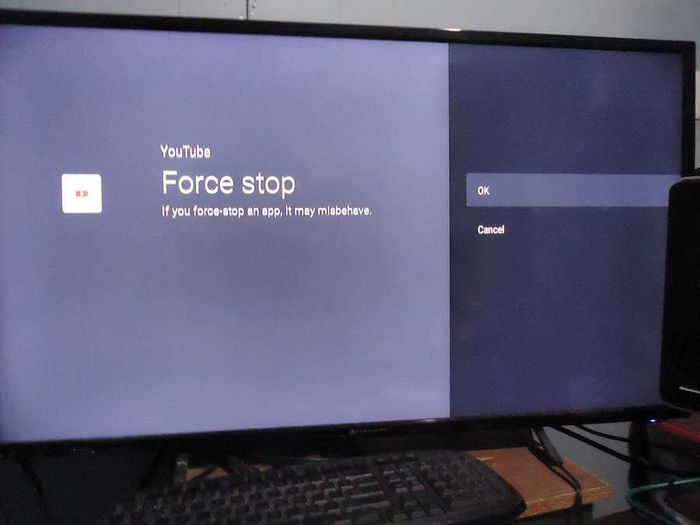
Then I opened the YouTube app again and everything was back to normal.