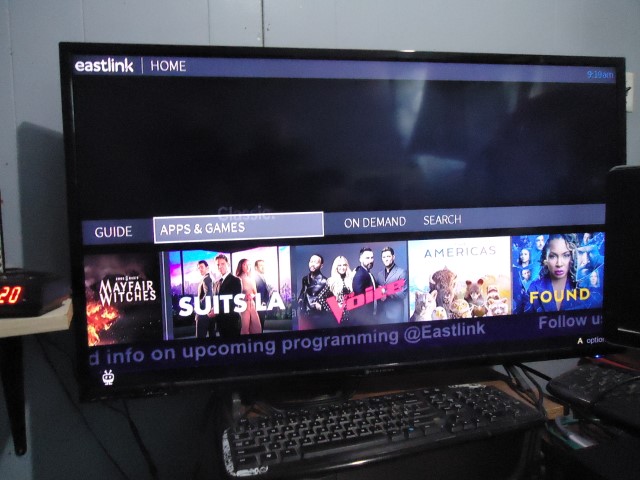
I use to have the Maestro Cable service but upgraded because of the costs. Streaming videos from PC to TV was a breeze with the Maestro service with it’s built in support. My new TiVo service uses an Android TV box with no built in support.
A bit of trial and error I finally figured out how to use VLC to stream from my computer to my Android TV.
I already have VLC on my computer so it was only a matter of going to my Android box and install VLC on it. I clicked on the TiVo menu button and went to the “APPS & GAMES” option.
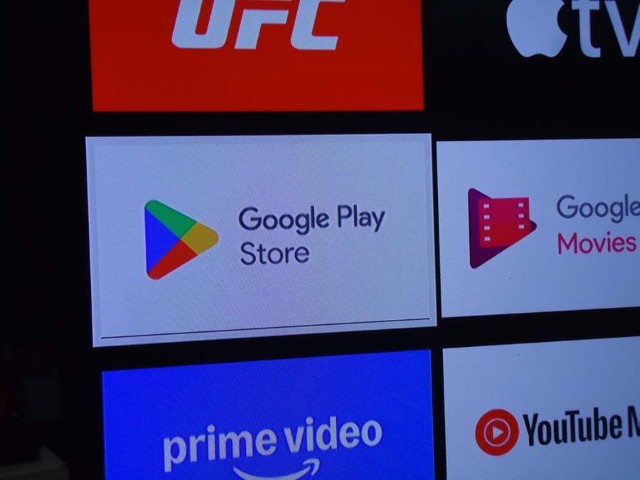
I selected the “Google Play Store” app.
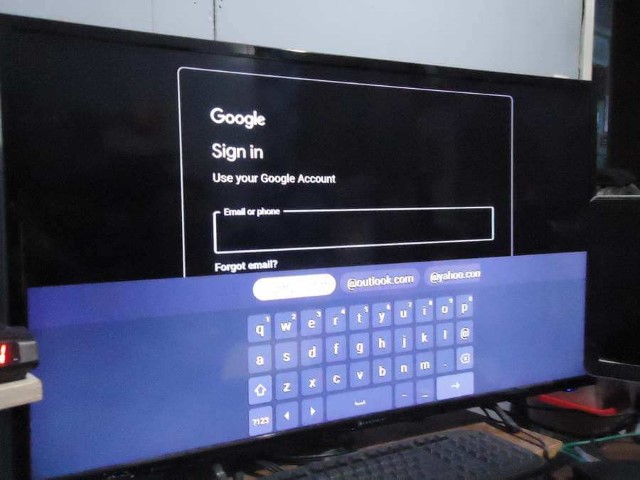
I had to click “Sign in” on two separate screens before actually getting to the sign in screen. I put in my email and then password.
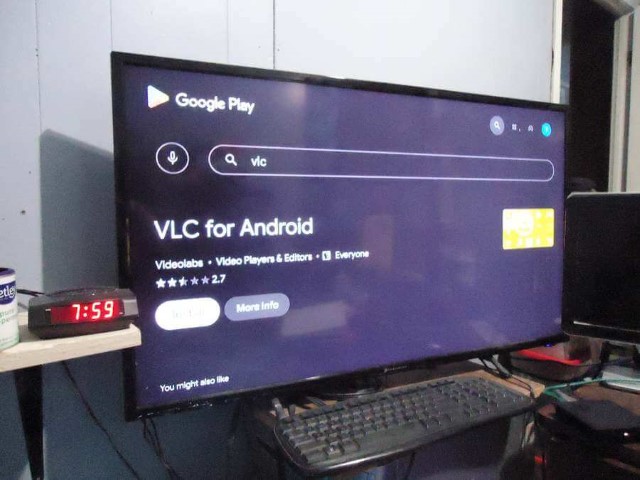
I’m now at the “Google Play”. I search for the VLC app. Install and open.
A few information screens to get through before the app actually starts. I allowed it to access photos and media on my device.
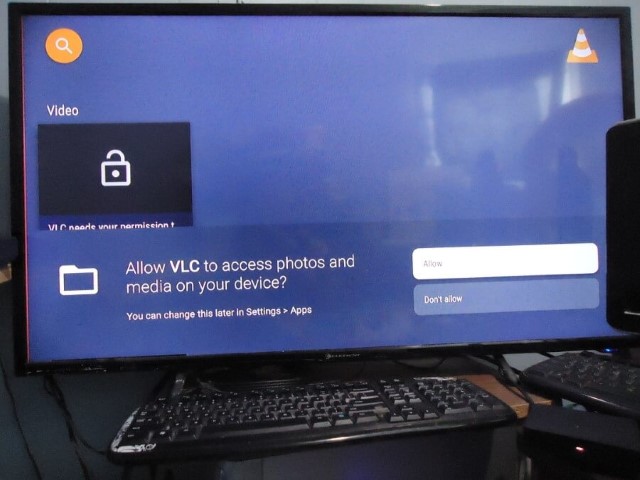
This is what VLC looks like on my Android device.
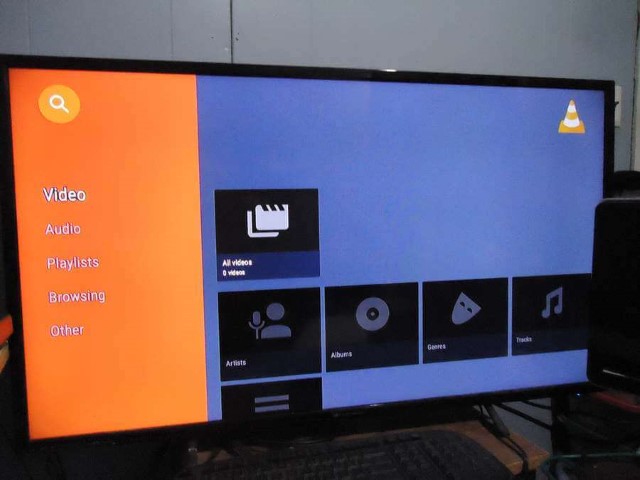
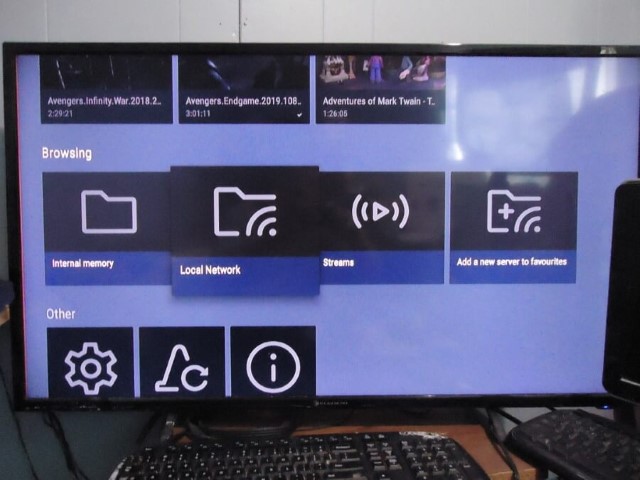
I already have a media folder shared on my system but clicking on the “Local Network” icon, it couldn’t find anything. I think the issue here is that my Android box is connected through the “Ethernet” and not wireless.
I could not get my Android to connect to my wireless even after much troubleshooting. An article for another time if I can figure it out.
So I selected “Streams”. I set up my movie on my PC to stream as covered in my article here:
Stream Videos Using VLC Over Private Networks
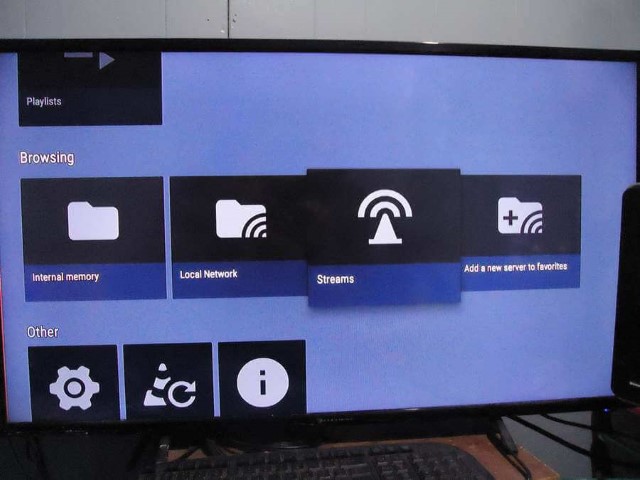
I typed in my “IP address”. I retrieved that from the command prompt using the “ipconfig” command. I entered it in the space provided ending with the ports numbers.
So mine read: http://192.168.4.26:8080
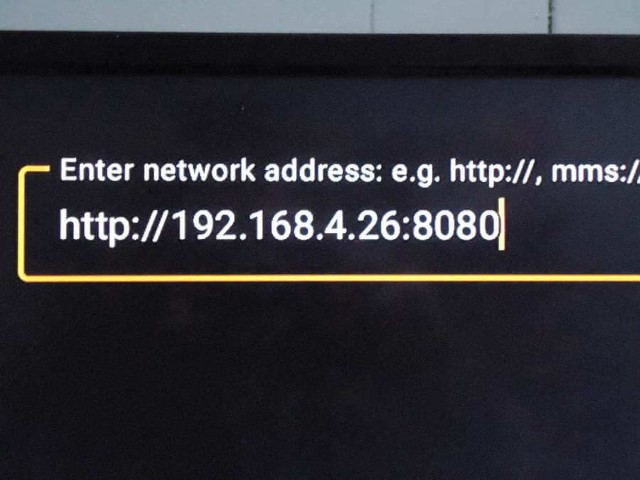
One good thing is that it saves the IP so the next time you only have to highlight it and press OK. And of course it didn’t work. Choppy video, no sound then it crashes. I first thought it might be the video format or resolution so I tried different formats and resolutions. Nothing.
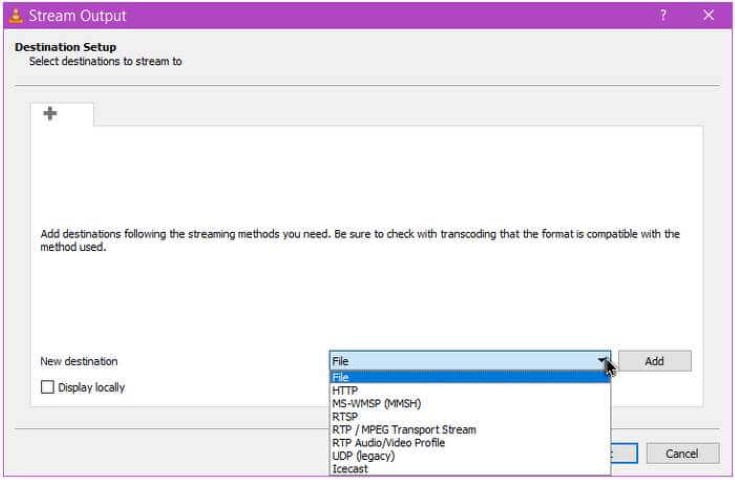
In the VLC setup at the “Destination Setup” (This is on the PC) options I tried them all, HTTP, RTSP, UDP and so on. Nothing.
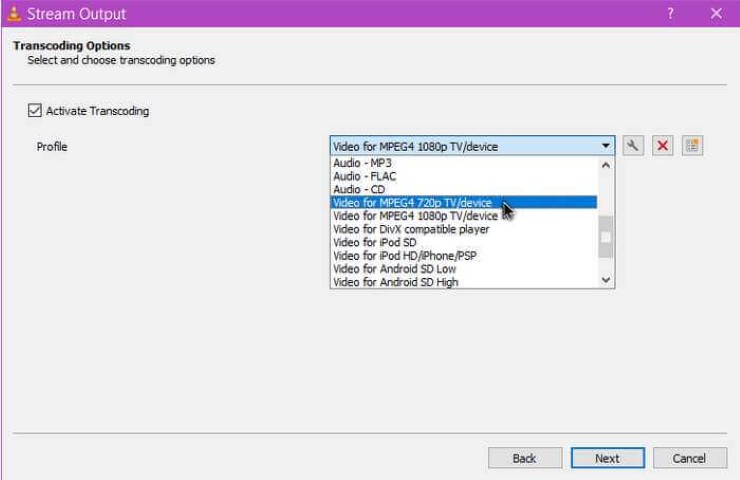
So then I started experimenting with the “Transcoding Options” and finally solved the problem. I usually left it on “Video – H.264 + MP3 (MP4)” the first option. Good high resolution video graphics, video stutters, no sound then it crashes withing a few minutes. I tried most of them including the ones that seem to be designed for Android but the best one for me is “Video for MPEG4 720p TV/device”. I tried the “1080p” one as well, good quality but the sound seems slightly out of sync.
Still not Maestro. I still have to set up each video individually for streaming. I’m convinced that if I can get the wireless working I would have better access through the network settings on the Android. I might have to get in touch with Tech support because I cannot access my router settings either. But for now I consider this torture session a success.
I wrote before about this but I couldn’t figure out at the time why VLC couldn’t see my shared video folder. I thought it was bacause my system was using ethernet and I couldn't get the wireless to connect. I recently discovered why I couldn’t see the media. It was because I forgot to share the folder. :-)
When I had my previous Maestro setup I didn’t have to share any folder but to place all videos that I wanted to watch in my Library. To do this right-click on a file or a folder and select “Include in library” from the context menu. Then select video, pictures or music, or whatever options you have available.
Read here for a more detailed explanation: Adding Or Removing Folders To Windows Libraries
Then I shared the folder by right-clicking on it. Clicked on “Give access to”. Then “Specific people”. Then I added “Everyone” to share it with and “Read” only permission.
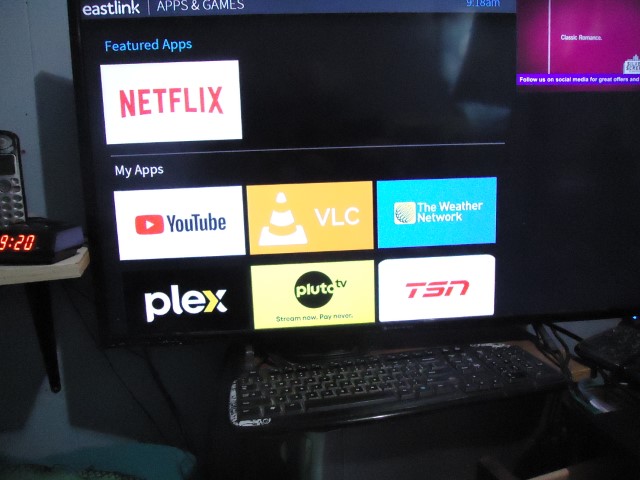
To view a video now on my Android box I go into the TiVo menu. Then I click on APPS & GAMES” and then “VLC”.
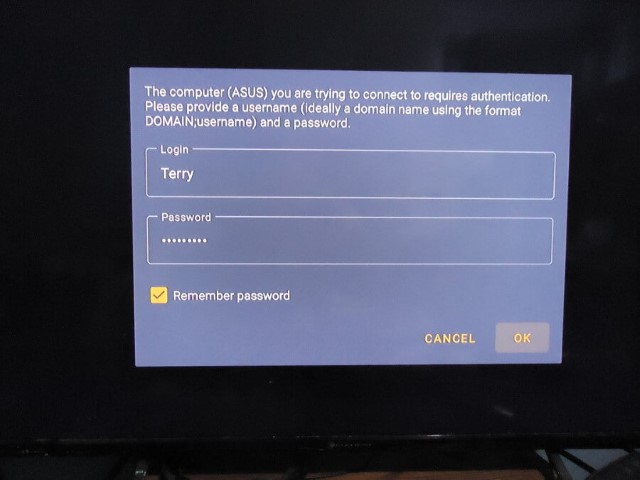
VLC will ask you to log on to the computer that you are trying to access. You can check to "Remember password". I have the "Remember password" checked but VLC still prompts for it. Not a big issue.
Then I navigated and clicked on the “Local Network” icon. Before it kept telling me to “add media” and “no media available”.
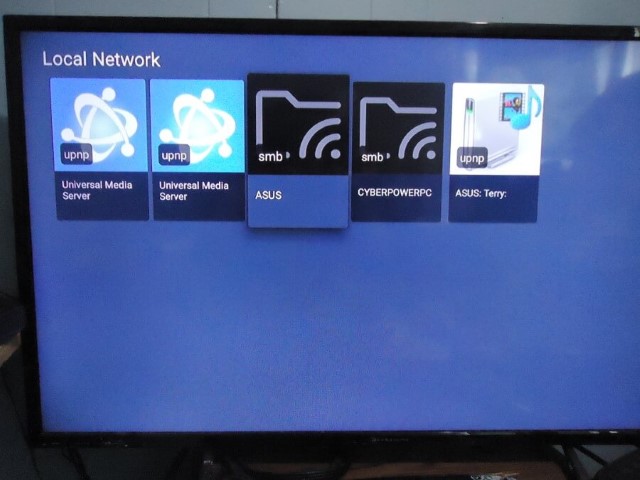
Then I got these options. None of these worked originally but now most of them do. I have two “Universal Media Servers” listed because I have UMS on both my Asus and CyberPowerPC.
If I click on the “Universal Media Server” this is what I get.
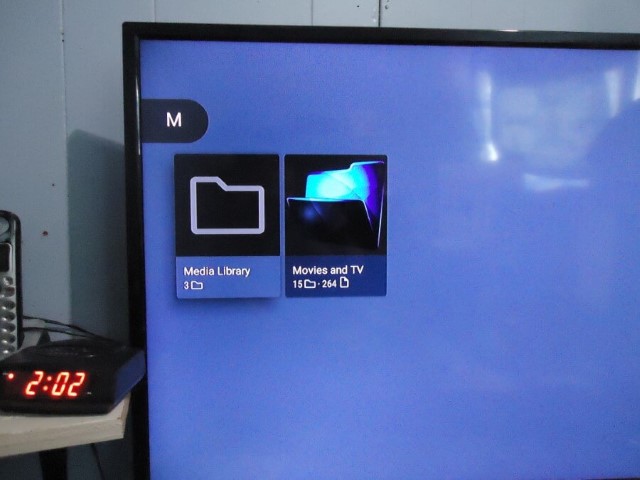
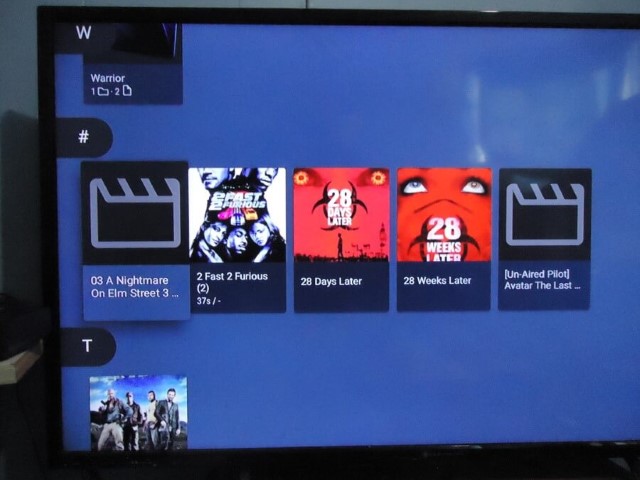
Now I can click on “Movies and TV” my shared media folder from my Asus. I can now access any video file with no issues and I do not have to use the “#--TRANSCODE--#” option.
Read here for setting up and using "Universal Media Server":
davescomputertips.com/universal-media-server-part-1-the-setup
davescomputertips.com/universal-media-server-part-2-the-execution
Going to the “Local Network” screen. I click on the “ASUS” option. Then click on the “Movies and TV” folder. Again, easy access to all my videos.
This is using VLC without UMS looking at media on my ASUS computer.

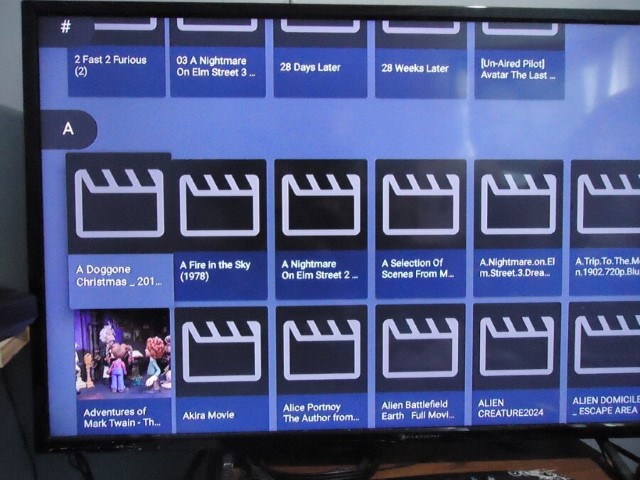
Click on a Folder, click on a Movie. You can fast forward, rewind, pause and even pick up where you left off. So, the basic setup using VLC to stream media from my computer to my TV.